
Kadabra OS Manual
A visual, technical guide to Kadabra controls. Each Shape has its own page section, color accent, and Main / Thumb sections.
GlossaryOpen common Kadabra terms
Kadabra EcosystemThe Bundle of software installed by Kadabra Full installation.
Kadabra OSKadabra's software environment, that communicate, display and control it.
K-PlayerThe VST/AU software that plays multi-channel synth and samplers sound.
ShapeOne main Kadabra mode, such as Performer, FXer, Sounder, or Viber.
SectionMain, Thumb 1, Thumb 2, or Thumb 3. Thumb sections are reached by holding a Thumb.
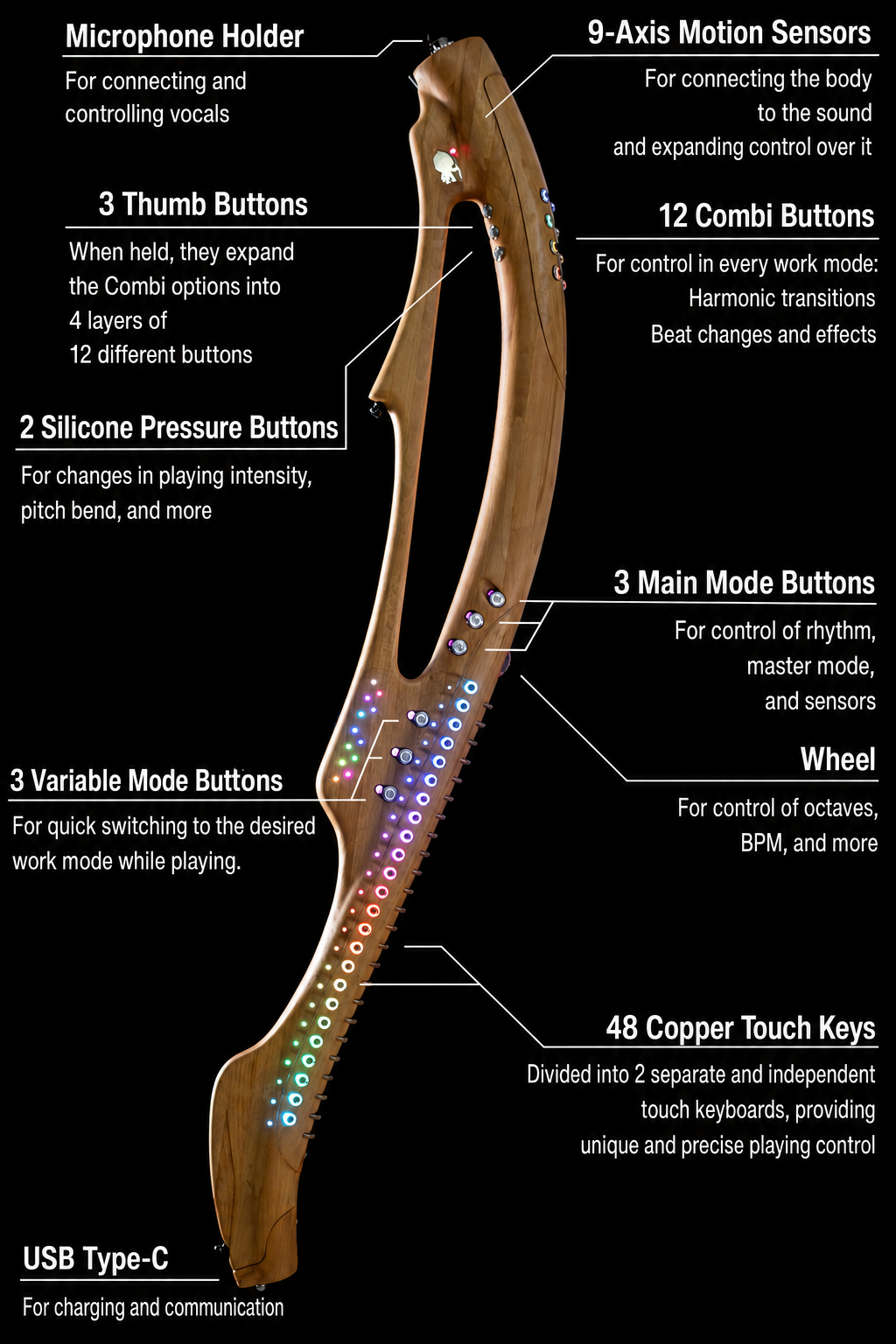
CombiOne of the 12 round buttons in the left-hand Combi area.
Press / SelectA quick press and release of a button.
HoldPress and keep holding the button while options may appear.
hold ThumbHold a Thumb button, usually before pressing a Combi in that Section.
Opened option menuA deeper Combi set that appears while a Combi is held or after a Combi opens extra choices.
Combi 2 (Save Mode)Example for the physical Combi number plus the Kadabra OS button title.
StateA saved Kadabra setup: sounds, loops, arpeggios, scale, key, and other settings.
Quick questionsOpen common workflows and FAQs
BPMHow do I keep BPM when loading a State?
- Go to Performer > Main Section.
- Hold Combi 2 (Save Mode).
- While holding it, press Combi 6 (BPM — Keep BPM / Load BPM).
- Choose whether the loaded State keeps the current BPM or loads the BPM saved inside that State.
FXHow do I control plugin FX?
- Go to FXer.
- Choose the Sound or MIDI channel you want to control.
- Hold the FX Combi you want to set.
- Touch a Keyboard Key to set the FX amount, or move the Wheel to adjust the CC number when available.
ShiftHow do I assign FXer to a Shifter?
- Go to Shaper.
- Choose the Shifter button you want to assign.
- Select FXer as the assigned Shape.
- Save or release to keep the assignment.
LIVEHow do I make a Sound follow live harmony?
- Go to Sounder.
- Choose the Active Sound.
- Hold Thumb 1 (SET — ACTIONS).
- Press Combi 1 (Follow Harmony), then choose Follow Live Harmony.
5How do I set the active sound?
- Go to Sounder.
- Hold Thumb 3 (SET ACTIVE).
- Press the Combi of the Sound you want to set as Active.
- That Sound becomes the Active Sound for editing and Shape actions.
SeqHow do I save a sequence?
- Go to Looper.
- Prepare the Active Sound and Pattern you want to save.
- Hold Combi 12 (Save Seq Pattern).
- While holding it, touch the Keyboard packet slot where you want to save the Sequence.
GateHow do I change the Viber gate length?
- Go to Viber.
- Press Combi 11 to make the Gate longer.
- Press Combi 12 to make the Gate shorter.
- For motion control, assign Viber Gate in Senser.
No matching manual entries found. Try clearing the Combi filter or using a shorter search.
Installation
Installation
Purchase, download, install and run the Kadabra software in the correct order.
Begin here after purchasing Kadabra. Your account contains the software, licenses and updated downloads needed for your computer.
Required installation order: install Supporting Plugins (Surge XT) first, and ONLY THEN install Kadabra OS Full Installation, for the best user experiance.
Flow Purchase → Download → Install → Run
1 Purchase
- Complete the Kadabra purchase. from: https://tribal-tools.com/shop
- A Kadabra User Area was created automatically for you inside the Tribal-Tools website.
- Open the purchase email sent to you.
- Use the email instructions to create or change your password.
- Enter the My Account Area.
- Open the Software & License tab.
2 Download
- Inside the User Area, in Software & License, first download Surge XT. the link will take you to Surge XT download site.
choose and download the correct version for your operating system• For Mac with Apple Silicon (M1, M2, M3 etc.), choose the ARM version.
• For Mac with an Intel processor (usually older Macs), choose the x86 version.
• For Windows, choose the Windows Full Installation.
- Then download the correct Kadabra OS Full Installation.
choose the correct version for your operating system• For Mac with Apple Silicon (M1, M2, M3 etc.), choose the ARM version.
• For Mac with an Intel processor (usually older Macs), choose the x86 version.
• For Windows, choose the Windows Full Installation.
3 Install
- Run and complete the downloaded Surge XT installer.
- ONLY AFTER Surge XT is installed, run the Kadabra OS Full Installation.
- Follow the installer made for your operating system.
macOS installation
• The important items to install are the Kadabra OS, Kadabra K-Player (DAW), and the VST3 Plugins and Samplers.
Windows installation
• The important items to install are the Kadabra OS, Kadabra K-Player (DAW), and the VST3 Plugins and Samplers, and finally: Windows Driver for the wireless radio box (K-Box).
4 Run Kadabra OS
- Before connecting any Kadabra cable to your computer:
open the Kadabra OS program.• on Mac: Applications -> Kadabra OS.
• on Windows: Kadabra OS icon on the desktop.
(if there is no Kadabra OS icon on the desktop, open it from Program Files -> Tribal-Tools -> Kadabra OS)
- Kadabra’s K-Player should start automatically.
Please let it start patiantly:
• it first Scans all of your Plugins.
• then loads the Starter session to have the first 12 default Kadabra sounds ready.
- Go back to the Kadabra OS window.
The first Lesson page should open
This page guides you through the first use of Kadabra OS and K-Player.
• if you want to have an Audio Voice to guide your lessons, you can press the big Speaker icon on the top right.
• Connect the K-Box or the Kadabra to your Computer to jump right into the 1st Lesson on how to play your Kadabra
or you can follow the Connectivity Lesson instructions if you wish to connect to other DAWs, or have multiple Virtual Midi ports.
- Follow Kadabra's Interactive Lessons patiantly.
• there is short but important information for your Kadabra experiance to flow.
• Each and every word and color counts! colors are very important and shows exactly what and where the lesson reffers to.
The Software Bundle Kadabra OS, K-Player, Samplers, Plugins
Inside the User Area
you'll have many different options to download, but most of them are bundled and installed inside the Kadabra OS Full Installation.
you'll have many different options to download, but most of them are bundled and installed inside the Kadabra OS Full Installation.
OS Kadabra OS (Operating System)
Kadabra OS is the main software for Kadabra's functionality
• Kadabra OS is what makes the Kadabra work and connects it (or the K-Box) to the computer.
• Kadabra OS holds all the special powers of Kadabra and transfers playing the Kadabra into actual Midi messages and other API communications.
• Kadabra OS holds all the special powers of Kadabra and transfers playing the Kadabra into actual Midi messages and other API communications.
it opens the virtual port "Kadabra" for other DAWs to use.
KP Kadabra K-Player
The K-Player is Kadabra's dedicated DAW (Digital Audio Workstation)
• Kadabra K-Player is what makes Kadabra SOUND on all channels.
• Each channel holds 1 VST/AU Instrument and 5 VST/AU Plugins, to be able to create a fully professional production sound.
• Channels can be Armed for recording and be recorded directly from the Kadabra in separated channels, to be played back inside the K-Player
Without the K-Player or a different DAW (like Ableton, Cubase, Logic, FL-Studio, Bitwig, etc.) Kadabra has no sound!
• Each channel of the K-Player can be a MIDI channel or an Audio channel.• Each channel holds 1 VST/AU Instrument and 5 VST/AU Plugins, to be able to create a fully professional production sound.
• Channels can be Armed for recording and be recorded directly from the Kadabra in separated channels, to be played back inside the K-Player
or in your favorite DAW (it can also export the recorded MIDI files for full control and arrangement fixes).
• Kadabra's K-Player has special abilities that gives the Kadabra super powers in comparison to other DAWs, like in-plugin program changes, objective channel recordings, live Plugin bypass (for CPU), Auto BPM sync and other cool features...
ED K-Sampler: Electronic Drumkit
The Electronic Drumkit
• a 128 long library of Electronic Kicks, Snares, Hihats and other digital drums.
• Each type of hit has its 12 sound variaties (12 Kicks, 12 Snares, 12 Hihats, etc.).
• the samples are frequency aware for the tonalety of each MIDI Note.
• Each type of hit has its 12 sound variaties (12 Kicks, 12 Snares, 12 Hihats, etc.).
• the samples are frequency aware for the tonalety of each MIDI Note.
AD K-Sampler: Acoustic Drums
The Acoustic Drums
• a 128 long library of a Drum Set with Kicks, Snares, Rims, Hi-Hats, Crash, Rides and more.
• Each type of hit has its 12 sound variaties (12 Kicks, 12 Snares, 12 Hi-Hats, etc.).
• the samples are frequency aware for the tonalety of each MIDI Note.
• Each type of hit has its 12 sound variaties (12 Kicks, 12 Snares, 12 Hi-Hats, etc.).
• the samples are frequency aware for the tonalety of each MIDI Note.
P K-Sampler: Percussions
The Percussions
• a 128 long library of Percussion sounds, with Clicks, Rims, Hits, Shakers, Congas and more.
• Each type of hit has its 12 sound variaties (12 Clicks, 12 Rims, 12 Hits, etc.).
• the samples are frequency aware for the tonalety of each MIDI Note.
• Each type of hit has its 12 sound variaties (12 Clicks, 12 Rims, 12 Hits, etc.).
• the samples are frequency aware for the tonalety of each MIDI Note.
GP K-Sampler: Grand Piano
The Grand Piano
• a 128 long library of a Grand Piano and all of its tones (and then some).
EP K-Sampler: Electric Piano
The Electric Piano
• a 128 long library of a Electric Piano and all of its tones (and then some).
EQ K-Plugin: K-Channel
The K-Channel - Channel Strip (EQ, Gate, Compressor)
The K-Channel is a dedicated Channel Strip that has low latency, high quality sound and low CPU footprint.
it has a few bundled effect:
it has a few bundled effect:
• A 5 band EQ with a frequency analizer.
• A Gate effect for noise removal and artistic effects.
• A Compressor effect for higher gain and punch.
• A Gate effect for noise removal and artistic effects.
• A Compressor effect for higher gain and punch.
Not bundled into the installation
you'll find the Kadabra Upgrade (which is better to use directly from inside the Kadabra OS).
some ready made Kadabra Projects and controllers made for other DAWs, to use already assigned MIDI CC messages.
and your private Kadabra and K-Box Lisence files that lets you use special features like Cloud Backup and KAI.
you'll find the Kadabra Upgrade (which is better to use directly from inside the Kadabra OS).
some ready made Kadabra Projects and controllers made for other DAWs, to use already assigned MIDI CC messages.
and your private Kadabra and K-Box Lisence files that lets you use special features like Cloud Backup and KAI.
The Kadabra Virtual MIDI port
the internal virtual cable between music-studio software:
the internal virtual cable between music-studio software:
K The "Kadabra" Port
Choosing Kadabra as your MIDI input
The Kadabra MIDI port is a dedicated Virtual MIDI cable inside your computer.
it comes from the Kadabra OS, and allows every DAW to read the information that Kadabra is sending.
in the K-Player (for example), the "Kadabra" MIDI port is connecting the note making Kadabra OS, to the sound making K-Player.
it comes from the Kadabra OS, and allows every DAW to read the information that Kadabra is sending.
in the K-Player (for example), the "Kadabra" MIDI port is connecting the note making Kadabra OS, to the sound making K-Player.
• to connect the Kadabra OS and the K-Player: press the settings wheel icon (at the lower part of the window), and choose "Kadabra" as the MIDI input device.
• if a Kadabra port exists (Kadabra OS is open): the "Kadabra" port is chosen automatically as the MIDI input device for each channel.
same goes for other DAWs, the "Kadabra" MIDI port is connecting the note making Kadabra OS, to the sound making DAW.
• if a Kadabra port exists (Kadabra OS is open): the "Kadabra" port is chosen automatically as the MIDI input device for each channel.
• Make sure that the "Kadabra" MIDI port is open in your DAW's settings.
• then just choose Kadabra as the MIDI input channel.
• then just choose Kadabra as the MIDI input channel.
Troubleshoot Hardware, cable, software-launch and support checks
USB K-Box cable is wrong
Use a USB Type-C to Type-C cable, or connect through a hub that has a Type-A USB connector.
PWR Kadabra shows no lights when the Power button is pressed
Charge Kadabra using any USB Type-C phone charger, and then try powering it on again.
BOX K-Box shows no light when connected
Disconnect the K-Box and change the USB cable.
OS Kadabra OS does not start
On Windows, right-click Kadabra OS and choose Run as administrator, then try opening it again.
K K-Player does not start
- On Mac, open K-Player directly from Applications.
- On Windows, open K-Player from
Program Files/Kadabra OS/data. - If it still does not start, enter your Kadabra My Account Area.
- Open Software & License.
- Download and install the latest K-Player.
- Try opening Kadabra OS again.
Help I could not make it work
Contact Tribal-Tools support:
- Phone/WhatsApp: +972-544404192
- Email: support@Tribal-Tools.com
Shape 1 · Deep-Teal color
Performer

Load and save complete Kadabra States.
For saving the Kadabra State into a song, performance, or set. Kadabra can save Keyboard Sounds, Loops, Arpeggios, Scale, Key, and other features into State spots, and then load these States for the next piece of a performance.
A State spot is held inside one of 9 Sets, inside one of 3 Banks, and inside one of that Bank’s 12 Combi spots. In Kadabra OS K23, there are 324 optional State spots.
FAQ, Tips & Shape infoOpen quick Performer workflows
BPMHow do I keep BPM when loading a State?
- Go to Performer.
- Hold Combi 2 (Save Mode).
- While holding it, press Combi 6 (BPM — Keep BPM / Load BPM).
- Choose whether the State loads its saved BPM or keeps the current BPM.
↓How do I save a State?
- Press a Set.
- Hold Combi 2 (Save Mode).
- Choose options for what should save or load.
- Hold a Bank Thumb (1–3) to select a Bank.
- Press a destination Combi (1–12) to save.
●●●Thumb Banks
Thumb Buttons select the State Banks to use.
- hold Thumb 1 = Bank 1 (different 12 combis)
- hold Thumb 2 = Bank 2 (different 12 combis)
- hold Thumb 3 = Bank 3 (different 12 combis)
💡Tips
- You can load Levels or a K-Project automatically when loading a State.
- Use BPM — Keep BPM / Load BPM to match tempo or stay in sync.
- Favorite States can be backed up via K-Project.
Main SectionNo Thumb is held
In the Performer Main Section, When no Thumb button is held, you can configure the Save and Load options and location (where the State is saved or loads from).
- A SET has differrent 3 Banks of 12 spots in each bank (36 Kadabra states).
- A SET name can be changed by right clicking its number.
- Combi 4 till 12 are options to choose in which Set (1-8 or the Factory Set) the States will be saved to, or load from.
- Load Mode or Save Mode is highlighted.
- There are saving/loading options when holding the "Load Mode" button or the "Save Mode" button
Combi 1 L Load Mode
SELECT: Change the Performer mode to Loading, not Saving. Thumb Banks functionality changes accordingly.
Combi 2 S Save Mode
SELECT: Change the Performer mode to Saving, not Loading. Thumb Banks functionality changes accordingly.
RELEASE:
Releasing Save Mode closes the Save options.
Combi 3 3 Set Bank
Beta only — opens a new Bank of 324 State Spots.
Combi 4 T Factory Trax
PRESS: Selects the Tribal-Tools Official Set. Banks and spots show Factory States and can be updated with Kadabra OS software updates.
Combi 5 1 Set 1
PRESS: Selects User Set 1. The States of this Set are not deleted when updating Kadabra OS software.
Combi 6 2 Set 2
PRESS: Selects User Set 2. The States of this Set are not deleted when updating Kadabra OS software.
Combi 7 3 Set 3
PRESS: Selects User Set 3. The States of this Set are not deleted when updating Kadabra OS software.
Combi 8 4 Set 4
PRESS: Selects User Set 4. The States of this Set are not deleted when updating Kadabra OS software.
Combi 9 5 Set 5
PRESS: Selects User Set 5. The States of this Set are not deleted when updating Kadabra OS software.
Combi 10 6 Set 6
PRESS: Selects User Set 6. The States of this Set are not deleted when updating Kadabra OS software.
Combi 11 7 Set 7
PRESS: Selects User Set 7. The States of this Set are not deleted when updating Kadabra OS software.
Combi 12 8 Set 8
PRESS: Selects User Set 8. The States of this Set are not deleted when updating Kadabra OS software.
Thumb BanksBank 1 · Bank 2 · Bank 3
In Performer, hold Thumb 1, Thumb 2, or Thumb 3 to choose a State Bank. The Combi spots inside each Bank share the same load/save behavior.
The three OS screens below illustrate the three Banks side by side.
Combis 1–121–12State spots inside the selected Bank
In Load Mode
- Empty spot: nothing to load.
- Named spot:
- HOLD: to prepare loading the State. (can be assigned to Master)
- RELEASE: loads the Kadabra State into Kadabra.
In Save Mode
- Empty spot: save without replacing an older State.
- Named spot:
- HOLD: to prepare replacing that State.
- RELEASE: saves the Kadabra State into that Combi spot, or opens the "Enter State Name" window.
Shape 2 · Cyan-Blue color
Sampler

Trigger samples using a chromatic scale.
USED MOSTLY FOR PLAYING SAMPLES, The SAMPLER has banks and is used for playing static Samples and playing in a chromatic way using the full-spectrum of an octave including all the 12 available tones.
Main SectionNo Thumb is held
In the Sampler Main Section, you can use the first 10 Combis to move the Chromatic (Sampler) keyboard to a specific octave
Combi 1 -2 Octave
“-2” – “Octave” (Samples 0 till 24 (C-2 till C0) are assigned to the Keyboard)
Combi 2 -1 Octave
“-1” – “Octave” (Samples 12 till 36 (C-1 till C1) are assigned to the Keyboard)
Combi 3 0 Octave
“0” – “Octave” (Samples 24 till 48 (C0 till C2) are assigned to the Keyboard)
Combi 4 1 Octave
“1” – “Octave” (Samples 36 till 60 (C1 till C3) are assigned to the Keyboard)
Combi 5 2 Octave
“2” – “Octave” (Samples 48 till 72 (C2 till C4) are assigned to the Keyboard)
Combi 6 3 Octave
“3” – “Octave” (Samples 60 till 84 (C3 till C5) are assigned to the Keyboard)
Combi 7 4 Octave
“4” – “Octave” (Samples 72 till 96 (C4 till C6) are assigned to the Keyboard)
Combi 8 5 Octave
“5” – “Octave” (Samples 84 till 108 (C5 till C7) are assigned to the Keyboard)
Combi 9 6 Octave
“6” – “Octave” (Samples 96 till 120 (C6 till C8) are assigned to the Keyboard)
Combi 10 7 Octave
“7” – “Octave” (Samples 108 till 127 (C7 till G8) are assigned to the Keyboard)
Thumb 1: SAMPLE - BANKS (Beta Only)Thumb 1: SAMPLE - BANKS (Beta Only)
The Sampler Thumb 1 Section, is in Beta testing.
No Combi details listed yet for this section.
Thumb 2: Set Key / TonalitySet Scale Key / Tonality
In the Sampler Shape, hold Thumb 2 to change the Tonality Key of the Kadabra. just like in Scaler and Harmoner shapes
Combi 1 C Do
“C” – “Do” (Sample bank now starts at the Tone C)
Combi 2 C# Re♭
“C#” – “Re♭” (Sample bank now starts at the Tone C#)
Combi 3 D Re
“D” – “Re” (Sample bank now starts at the Tone D)
Combi 4 D# Mi♭
“D#” – “Mi♭” (Sample bank now starts at the Tone D#)
Combi 5 E Mi
“E” – “Mi” (Sample bank now starts at the Tone E)
Combi 6 F Fa
“F” – “Fa” (Sample bank now starts at the Tone F)
Combi 7 F# Sol♭
“F#” – “Sol♭” (Sample bank now starts at the Tone F#)
Combi 8 G Sol
“G” – “Sol” (Sample bank now starts at the Tone G)
Combi 9 G# La♭
“G#” – “La♭” (Sample bank now starts at the Tone G#)
Combi 10 A La
“A” – “La” (Sample bank now starts at the Tone A)
Combi 11 A# Ti♭
“A#” – “Ti♭” (Sample bank now starts at the Tone A#)
Combi 12 B Ti
“B” – “Ti” (Sample bank now starts at the Tone B)
Thumb 3: -----Thumb 3: -----
Sampler Thumb 3 Section is empty.
No Combi details listed yet for this section.
Shape 3 · Light-Green color
Scaler

Play melodies and solos on a scale.
The Scaler is for playing solos, tunes, and melodies inside a chosen Scale. It lets you set the Tonic, choose a known Scale, create a User-Scale, change Bass, and modify important tones while staying musically organized.
FAQ, Tips & Shape infoOpen quick Scaler workflows
KeyHow do I change the Key / Tonic?
- Go to Scaler.
- Hold Thumb 2 (SET — KEY/TONIC).
- Press the Combi of the tone you want, for example Combi 1 (C / Do).
- Release Thumb 2 to continue playing with the new Tonic.
MajorHow do I set C Major?
- Go to Scaler.
- Hold Thumb 2 (SET — KEY/TONIC) and press Combi 1 (C / Do).
- Hold Thumb 3 (SET — SCALE).
- Hold or open Combi 1 (Major / Open Diatonics), then choose Combi 1 (Major).
UserHow do I create a User-Scale?
- Go to Scaler.
- Hold Thumb 3 (SET — SCALE).
- Press Combi 10 (Your Scale / Pick Tones).
- Press the tone Combis you want in the Scale.
- Release Thumb 3 to set the User-Scale.
InfoWhat the Scaler is for
Scaler helps you play melodies and solos inside a selected Scale. The Keyboard follows the chosen Tonic and Scale, so the available tones stay musically related.
- Thumb 1 changes the Bass / 1st Tone.
- Thumb 2 changes the Tonic / Key.
- Thumb 3 changes the Scale family, mode, or User-Scale.
TipTips
- Set the Tonic first, then set the Scale.
- Use Chromatic when you want all 12 half-tones available.
- Use User-Scale when the song needs a custom tone selection.
- Use Bass separately when the harmonic root should differ from the Tonic.
Interactive Scale explanation12 tones · C Major · Custom Scale
12-tone Scale builder
C Major (Diatonic)
Click the 12 chromatic tones to show how Kadabra keeps only the chosen tones active in a Scale. This example uses C as the Tonic.
What this means in Kadabra
A Scale is a chosen set of tones inside the 12 possible tones of an octave. In C Major, the active tones are C, D, E, F, G, A and B.
- Thumb 2 (SET — KEY/TONIC) changes the Tonic, for example from C to D.
- Thumb 3 (SET — SCALE) changes which tones are active in the Scale.
- Chromatic means all 12 half-tones are available.
- User-Scale lets you pick the active tones yourself.
Main SectionNo Thumb is held
In the Scaler Main Section, you can control how the Keyboard follows harmony, transpose the current Scale, change the Keyboard arrangement, and modify important Scale degrees.
- Follow Harmony can make Scaler follow recorded harmonic changes from the Looper.
- Key Arrangement changes how Scale tones are spread across the Keyboard.
- ½ Tone Up / Down moves the Keyboard tones by half-tones.
- Big / Small tone controls change the character of the Scale.
Combi 1 OFF Follow Harmony
Combi 2 SET Key Arrangement
Combi 3 ↓½ ½ Tone Down
PRESS: Move every tone in the Scaler Keyboard a half-tone down.
Combi 4 ↑½ ½ Tone Up
PRESS: Move every tone in the Scaler Keyboard a half-tone up.
Combi 5 KB KB Arrangement
Combi 6 ↕ Adjust Held Tone
PRESS: While holding a Keyboard Key, change the held Keyboard tone up or down. If no Keyboard Key is held, nothing happens.
Combi 7 5th 5th Decrease / Increase
PRESS: Decrease or increase the Scale 5th according to the current optimized direction.
Combi 8 3 Big / Small 3rd
PRESS: Change the 3rd between Major and minor when available.
Combi 9 7 Big / Small 7th
PRESS: Change the 7th between small 7 and big 7 when available.
Combi 10 9 Big / Small 9th
PRESS: Change the 9th between small 9 and big 9 when available.
Combi 11 11 Big / Small 11th
PRESS: Change the 11th between small 11 and big 11 when available.
Combi 12 13 Big / Small 13th
PRESS: Change the 13th between small 13 and big 13 when available.
Thumb 1: BASSSet the Bass / 1st Tone
Combi 1 C Do
PRESS: Sets the Scaler Bass / 1st Tone to C.
Combi 2 C# Re♭
PRESS: Sets the Scaler Bass / 1st Tone to C#.
Combi 3 D Re
PRESS: Sets the Scaler Bass / 1st Tone to D.
Combi 4 D# Mi♭
PRESS: Sets the Scaler Bass / 1st Tone to D#.
Combi 5 E Mi
PRESS: Sets the Scaler Bass / 1st Tone to E.
Combi 6 F Fa
PRESS: Sets the Scaler Bass / 1st Tone to F.
Combi 7 F# Sol♭
PRESS: Sets the Scaler Bass / 1st Tone to F#.
Combi 8 G Sol
PRESS: Sets the Scaler Bass / 1st Tone to G.
Combi 9 G# La♭
PRESS: Sets the Scaler Bass / 1st Tone to G#.
Combi 10 A La
PRESS: Sets the Scaler Bass / 1st Tone to A.
Combi 11 A# Ti♭
PRESS: Sets the Scaler Bass / 1st Tone to A#.
Combi 12 B Ti
PRESS: Sets the Scaler Bass / 1st Tone to B.
Thumb 2: Set Key (Base Tone)set the Scale Key / Tonic
Combi 1 C Do
PRESS: Sets the Scaler Key / Tonic so the Scale starts at C.
Combi 2 C# Re♭
PRESS: Sets the Scaler Key / Tonic so the Scale starts at C#.
Combi 3 D Re
PRESS: Sets the Scaler Key / Tonic so the Scale starts at D.
Combi 4 D# Mi♭
PRESS: Sets the Scaler Key / Tonic so the Scale starts at D#.
Combi 5 E Mi
PRESS: Sets the Scaler Key / Tonic so the Scale starts at E.
Combi 6 F Fa
PRESS: Sets the Scaler Key / Tonic so the Scale starts at F.
Combi 7 F# Sol♭
PRESS: Sets the Scaler Key / Tonic so the Scale starts at F#.
Combi 8 G Sol
PRESS: Sets the Scaler Key / Tonic so the Scale starts at G.
Combi 9 G# La♭
PRESS: Sets the Scaler Key / Tonic so the Scale starts at G#.
Combi 10 A La
PRESS: Sets the Scaler Key / Tonic so the Scale starts at A.
Combi 11 A# Ti♭
PRESS: Sets the Scaler Key / Tonic so the Scale starts at A#.
Combi 12 B Ti
PRESS: Sets the Scaler Key / Tonic so the Scale starts at B.
Thumb 3: Set Scalehchoose Scale family, mode, or User-Scale
Combi 1 SET Major / Open Diatonics
Combi 2 SET Minor
PRESS: Set Minor as the new Scale.
Combi 3 SET Harmonic / Open Diatonics
Combi 4 SET Melodic / Open Diatonics
Combi 5 5 Pentatonic Minor
Combi 6 6 Blues / Open Sextatonics
Combi 7 7 Specials / Open Scales
Combi 8 8 Half-Whole / Open 8 & More
PRESS: Beta only. Opens more 8-note Scale options when available.
Combi 9 SET Persian
PRESS: Set Persian as the new Scale.
Combi 10 SET Your Scale / Pick Tones
RELEASE: Release the Thumb button to set the User-Scale as the new Scale.
Combi 11 SET Degree
Combi 12 ON Chromatic
PRESS: Switch between Chromatic Scale on the Keyboard and the active Kadabra Scale.
Shape 4 · Dark-Green color
Harmoner

Play chords and harmonies of the whole song.
Harmoner is used mostly for playing chords and harmonies. It lets you explore Scale harmonies through their Harmonic Modes. Each chord change starts from a basic 1, 3, 5 chord and can be modified with 7, 9, 11, and 13 colors.
Harmoner can also change the Key, Scale, and Harmony of Relative Loops and Relative Sounds.
FAQ, Tips & Shape infoOpen quick Harmoner workflows
C#mHow do I change the Harmony?
- Go to Harmoner.
- Use the Main Section.
- Press one of Combis 1–7 to choose the Harmonic Mode.
- The Keyboard and Relative sounds follow the new harmony.
7+How do I add 7, 9, 11, or 13?
- Go to Harmoner > Main Section.
- Choose the current Harmonic Mode.
- Press Combi 9 for 7, Combi 10 for 9, Combi 11 for 11, or Combi 12 for 13.
- Press again to remove that color when available.
LoopHow do I make Harmoner follow a recorded channel?
- Go to Harmoner.
- Hold Thumb 1 (Scale — Modify).
- Press Combi 1 (Follow Harmony).
- Choose the channel to follow.
InfoWhat Harmoner is for
Harmoner is the Shape for controlling song harmony. It turns Scale degrees into playable chords and lets Relative Sounds follow your harmonic story.
- Main Combis 1–7 choose Harmonic Modes.
- Combis 8–12 modify the present chord.
- Thumb 2 changes Key / Tonic.
- Thumb 3 changes the Scale.
TipTips
- Start with 1,3,5 for a clear basic chord.
- Add 7 for stronger harmonic direction.
- Use 9, 11, and 13 for wider color and tension.
- Change Key or Scale first if the harmonic colors feel wrong for the song.
Interactive Chord explanation1 · 3 · 5 · 7 · 9 · 11 · 13
Chord builder in C Major
C Major triad
The 12-tone octave contains all half-tones. The C Major Scale uses 7 of them: C, D, E, F, G, A, B. A basic chord uses 1, 3, and 5. Extensions reuse Scale degrees higher up: 9 = 2, 11 = 4, and 13 = 6.
C1 root
C#out
D2 / 9
D#out
E3
F4 / 11
F#out
G5
G#out
A6 / 13
A#out
B7
How Harmoner thinks about chords
A 1,3,5 chord is the basic triad. In C Major, that is C, E, and G.
- 7 adds the 7th Scale degree: B.
- 9 adds the 2nd Scale degree as a higher color: D.
- 11 adds the 4th Scale degree as a higher color: F.
- 13 adds the 6th Scale degree as a higher color: A.
Harmoner uses these relationships inside the active Scale, so the actual notes change when the Scale or Harmonic Mode changes.
Main SectionNo Thumb is held
In the Harmoner Main Section, the first 7 Combis choose the Harmonic Mode of the current Scale. The later Combis modify the present chord by changing the 3rd or adding/removing 7, 9, 11, and 13.
- Press Combis 1–7 to move between Harmonic Modes.
- Hold Combis 1–7 to open Combi-combination chord options.
- Use Combis 8–12 to shape the present chord color.
Combi 1 1 1st Harmonic Mode
PRESS: Sets the 1st Harmonic Mode of the current Scale. This is usually the chord of the Scale Key.
Combi 2 2 2nd Harmonic Mode
PRESS: Sets the 2nd Harmonic Mode of the current Scale.
Combi 3 3 3rd Harmonic Mode
PRESS: Sets the 3rd Harmonic Mode of the current Scale.
Combi 4 4 4th Harmonic Mode
PRESS: Sets the 4th Harmonic Mode of the current Scale.
Combi 5 5 5th Harmonic Mode
PRESS: Sets the 5th Harmonic Mode of the current Scale.
Combi 6 6 6th Harmonic Mode
PRESS: Sets the 6th Harmonic Mode of the current Scale.
Combi 7 7 7th Harmonic Mode
PRESS: Sets the 7th Harmonic Mode of the current Scale.
Combi 8 3rd Major / Minor
PRESS: Changes the 3rd note of the present chord between Major and minor.
Combi 9 7 Add / Remove 7
PRESS: Adds or removes the 7th note of the present chord.
Combi 10 9 Add / Remove 9
PRESS: Adds or removes the 9th color of the present chord. The 9 is the 2nd Scale degree heard as an upper extension.
Combi 11 11 Add / Remove 11
PRESS: Adds or removes the 11th color of the present chord. The 11 is the 4th Scale degree heard as an upper extension.
Combi 12 13 Add / Remove 13
PRESS: Adds or removes the 13th color of the present chord. The 13 is the 6th Scale degree heard as an upper extension.
Thumb 1: Scale - ModifyModify Main Scale and harmony controls
Hold Thumb 1 to modify how Harmoner follows harmony, arranges notes, and places chord/scale material on Keyboard rows.
Combi 1LiveFollow Harmony
Combi 2SETKey Arrangement
Combi 3 ½↓ Half Tone Down
PRESS: sets every tone in the Keyboard a half tone down.
Combi 4 ½↑ Half Tone Up
PRESS: sets every tone in the Keyboard a half tone up.
Combi 5KBKB Arrangement
Combi 6 ↕ Held Tone Up/Down
PRESS: Adjusts the held tone up/down behavior of the present harmony or held Keyboard tone.
Combi 7 5th Decrease / Increase
PRESS: Adjusts the decrease / increase behavior of the present harmony or held Keyboard tone.
Combi 8 3 Major / Minor
PRESS: Adjusts the major / minor behavior of the present harmony or held Keyboard tone.
Combi 9 7 Small / Big 7
PRESS: Adjusts the small / big 7 behavior of the present harmony or held Keyboard tone.
Combi 10 9 Small / Big 9
PRESS: Adjusts the small / big 9 behavior of the present harmony or held Keyboard tone.
Combi 11 11 Small / Big 11
PRESS: Adjusts the small / big 11 behavior of the present harmony or held Keyboard tone.
Combi 12 13 Small / Big 13
PRESS: Adjusts the small / big 13 behavior of the present harmony or held Keyboard tone.
Thumb 2: Set Key (Base Tone)set the Scale Key / Tonic
Just like in the Sampler and Scaler shapes:
Hold Thumb 2 and press one of the 12 Combis to set the Scale Key / Tonic.
Changing the root of the scale changes the tonality feel and can make the Kadabra sync to other musical instruments' tones
Combi 1CDo
PRESS: Set the Harmoner Key / Tonic to C.
Combi 2C#Re♭
PRESS: Set the Harmoner Key / Tonic to C#.
Combi 3DRe
PRESS: Set the Harmoner Key / Tonic to D.
Combi 4D#Mi♭
PRESS: Set the Harmoner Key / Tonic to D#.
Combi 5EMi
PRESS: Set the Harmoner Key / Tonic to E.
Combi 6FFa
PRESS: Set the Harmoner Key / Tonic to F.
Combi 7F#Sol♭
PRESS: Set the Harmoner Key / Tonic to F#.
Combi 8GSol
PRESS: Set the Harmoner Key / Tonic to G.
Combi 9G#La♭
PRESS: Set the Harmoner Key / Tonic to G#.
Combi 10ALa
PRESS: Set the Harmoner Key / Tonic to A.
Combi 11A#Ti♭
PRESS: Set the Harmoner Key / Tonic to A#.
Combi 12BTi
PRESS: Set the Harmoner Key / Tonic to B.
Thumb 3: Set ScaleHold Thumb 3
Just like holding the 3rd Thumb in the Scaler shape:
Hold Thumb 3 to choose the active Scale, or a special scale (from the Pentatonic and Sextatonic scales) for a Keyboard Split (a scale in one keyboard row and a harmony in the other).
Some Combis directly set a Scale, and some open a deeper option menu with Scale families, modes/degrees, Chromatic behavior, or User-Scale tone picking.
Combi 1SETMajor / Diatonics
Combi 2 SET Minor
PRESS: Set Minor as the new Scale.
Combi 3SETHarmonic / Diatonics
Combi 4SETMelodic / Diatonics
Combi 5 5 Pentatonic Minor
Combi 66Blues / Sextatonics
Combi 77Specials
Combi 8 8 Half-Whole
Beta only — opens 8-note and more advanced options.
Combi 9 SET Persian
PRESS: Set Persian as the new Scale.
Combi 10SETYour Scale / Pick Tones
Combi 11SETDegree
Combi 12 ON Chromatic
PRESS: Switch between Chromatic Scale and the active Kadabra Scale.
Shape 5
Looper

Create rhythm, harmony and melodic material with two connected layers: a quantized Sequence and a repeating free-form recorded Loop.
The Sequence is beat-accurate and rhythm-aware: when you change its structure, the notes follow the new Pattern / Bar / Beat / Step structure automatically.
The Recorded Loop is a repeating capture that can be recorded freely without rhythm dependency. It can later be quantized into the Sequencer if you want tighter rhythmic control.
FAQ, Tips & Shape infoOpen quick Looper workflows
QHow do I quantize a recorded Loop?
- Go to Looper.
- Record a free Loop with Combi 2 (Rec Loop).
- Target the Sequence / Loop behavior with Combi 3 if needed.
- Press Combi 7 (Quantize) to snap the notes to the active rhythmic structure.
SaveHow do I save a Sequence Pattern?
- Go to Looper.
- Prepare the Active Sound and Pattern.
- Press Combi 12 (Save Seq Pattern).
- Choose the destination as your workflow requires.
InfoWhat the Looper is for
The Looper lets you build music in two parallel ways: a tightly structured Sequencer and a free-form repeating Loop. Together they let you create beats, chord beds, melodic figures and live rhythmic edits.
- Use Sequence when rhythm accuracy matters.
- Use Recorded Loop when you want natural free capture.
- Quantize the Loop later if you want it to behave like the Sequence.
TipTips
- Choose the Pattern and Bar length before building a Sequence.
- Use the Sample Container way for fast live results.
- Use the Step Sequencer way for exact rhythmic control.
- Keep Sequence and Loop conceptually separate: one is grid-based, the other is free capture.
Looper structure4 Patterns · Bars · Beats · Steps · Loop Length · Sequence Length · Static / Relative
Each sound (1-16) has 4 different Sequence Patterns, and 4 different Loop Patterns in the Looper
For the Sequences:
• A Pattern is made out of upto 4 Bars
• A Bar is made out of upto 4 Beats
• A Beat is made out of upto 4 Steps (set Beat structure in the Temper shape)
• A Step is made out of 24 frames
For the Loops:
• A Pattern is a free canvas where events are recorded in milliseconds
• notes, motion, harmonic changes and other events can be recorded
• Up to 4 Patterns can be recorded in a single recording
Lets visualize the structure
Pattern 1 · Loop Length 2 Bars · Sequence Length 2 Bars · RelativeActive Pattern
Loop Length
Sequence Length
Bar 1Bar 2Bar 3Bar 4
Free Recorded Loop layer
Extra melodic notes/events recorded freely in milliseconds. They are not forced into the Sequence Step order.
0 ms
free timing, not Step grid
4-Bar canvas
selected Loop length
C
E
G
B♭
A
D
F
Loop repeats here
Loop Length affects only the Loop layer. Changing it does not move, quantize, shorten, or remove Sequence notes.
Pattern line
Each horizontal line is one Pattern. The full line is divided into 4 Bars, each Bar is divided into 4 Beats, and each Beat is divided into 4 Steps.
Quantized Sequence
The Sequence is rhythm-aware and beat-accurate. If you change the rhythmic structure or Sequence Length, the notes follow the new structure automatically.
Recorded Loop
The recorded Loop is free-form inside the repeating Loop. It can later be quantized into the Sequencer, but it does not depend on the grid while being recorded.
Extra FeaturesLooper Extras
IImport a MIDI file into the Looper's sequence
- in your favorite DAW: create a MIDI part.
- Save that MIDI file in an easy to find location.
- In the Kadabra OS: go to Looper shape.
- Press the "I" Button (for Importing a MIDI file).
- Find the MIDI file and choose it.
- That's it, the file should become a part of your Looper's sequence in the chosen Pattern
EExport a MIDI file from the Looper's sequence
- in the Kadabra OS: go to the Looper: shape
- Create a MIDI Pattern in your Looper's sequence.
- Press the "E" button (for Exporting into a MIDI file) on the top right side of the Looper section
- Save that MIDI file in an easy to find location.
- In your chosen DAW: import the MIDI file.
Main SectionNo Thumb is held
In the Looper Main Section, you control the Active Sound’s Loop and Sequence behavior, play or stop the full Looper, record free Loops, quantize them, and save or load Sequence Patterns.
Combi 1 ■/▶ Play / Stop
PRESS: Start the Looper if it is stopped, or stop it if it is already running. All unmuted Loop and Sequence material follows together in sync.
Combi 2 🔴 Rec Loop
PRESS: Start or stop recording the repeating free-form Loop layer of the Active Sound.
Combi 3 SEQ Sequence / Loop / Both
PRESS: Choose whether Thumb 1 actions affect the Sequence, the recorded Loop, or both together.
Combi 4 / Reset
PRESS: Reset the Active Sound's current Loop / Sequence material according to the selected focus.
Combi 5 ■/▶ Sequence Aloud
PRESS: Enable hearing the quantized Sequence result while you create or edit it.
Combi 6 ■/▶ Loop Aloud
PRESS: Enable hearing the recorded Loop layer while editing it.
Combi 7 Q Quantize
PRESS: Quantize the targeted notes to the selected rhythmic structure.
HOLD: Use this when you want a free recorded Loop to snap tightly into the Sequencer structure.
Combi 8 Load Load Seq Pattern
PRESS: Load a previously saved Sequence Pattern into the Active Sound.
Combi 9 Notes Static Loop
PRESS: Toggle whether recorded Loop notes stay Static or remain musically Relative to Scale and Harmony.
Combi 10 Over Add To
PRESS: Choose whether new material overwrites or adds to the existing content.
Combi 11 F Loop-Fix
PRESS: Open repair / adjustment behavior for the recorded Loop.
HOLD: While holding, move the Wheel to shift the Loop start or end for rhythmic correction.
Combi 12 Save Save Seq Pattern
PRESS: Save the current Sequence Pattern of the Active Sound.
Thumb 1: Actions (to Seq/Loop/Both)Looping length and Patterns
In the Looper Thumb 1 Section, you can change the loop length of the loop, of the sequence or of both the loop and the sequence pattern. you can also choose a different pattern to work on and play, or choose multiple patterns that will loop after another by holding them in the desired order.
Combi 1 1/32 BAR Loop
“1/32” – “BAR” – “Loop”.
• Hold: opens optional Combinations with:
• Press: changes the Effected Inner Shape’s Looping Length to a 1/32 Bar
Combi 2 1/16 BAR Loop
“1/16” – “BAR” – “Loop”.
• Hold: opens optional Combinations with:
• Press: changes the Effected Inner Shape’s Looping Length to a 1/16 Bar
Combi 3 1/8 BAR Loop
“1/8” – “BAR” – “Loop”.
• Hold: opens optional Combinations with:
• Press: changes the Effected Inner Shape’s Looping Length to a 1/8 Bar
Combi 4 1/4 BAR Loop
“1/4” – “BAR” – “Loop”.
• Hold: opens optional Combinations with:
• Press: changes the Effected Inner Shape’s Looping Length to a 1/4 Bar
Combi 5 1/2 BAR Loop
“1/2” – “BAR” – “Loop”.
• Hold: opens optional Combinations with:
• Press: changes the Effected Inner Shape’s Looping Length to a 1/2 Bar
Combi 6 1 BAR Loop
“1” – “BAR” – “Loop”.
• Hold: opens optional Combinations with:
• Press: changes the Effected Inner Shape’s Looping Length to 1 Bar
Combi 7 2 BARs Loop
“2” – “BARs” – “Loop”.
• Hold: opens optional Combinations with:
• Press: changes the Effected Inner Shape’s Looping Length to 2 Bar
Combi 8 4 BARs Loop
“4” – “BARs” – “Loop”.
• Hold: opens optional Combinations with:
• Press: changes the Effected Inner Shape’s Looping Length to 4 Bars
Combi 9 1 Pattern Seq & Loop
PATTERN 1.
• Press: changes the played Looper Pattern (Loop/Seq/both) to Pattern 1
• Hold: allows adding more patterns to follow Pattern 1 - for looping multiple patterns.
Combi 10 2 Pattern Seq & Loop
PATTERN 2.
• Press: changes the played Looper Pattern (Loop/Seq/both) to Pattern 2
• Hold: allows adding more patterns to follow Pattern 2 - for looping multiple patterns.
Combi 11 3 Pattern Seq & Loop
PATTERN 3.
• Press: changes the played Looper Pattern (Loop/Seq/both) to Pattern 3
• Hold: allows adding more patterns to follow Pattern 3 - for looping multiple patterns.
Combi 12 4 Pattern Seq & Loop
PATTERN 4.
• Press: changes the played Looper Pattern (Loop/Seq/both) to Pattern 4
• Hold: allows adding more patterns to follow Pattern 4 - for looping multiple patterns.
Thumb 2: Sequence creationTwo ways to build Sequences
There are two ways to create a sequence in the Looper by holding Thumb 2
• 8 Sample Containers - to write WHERE each sample/note happens in the Loop pattern.
• A Step Sequencer - each added sample/note is moving the marker to the next Step.
SC
Sample Container way
Build the Sequence using prepared tone / sound containers. This is quick for grooves, rhythmic riffs and repeated patterns where each press launches prepared content.
Combis 1–8 1–8 Sample Container buttons first eight containers
1
2
3
4
5
6
7
8
Each Combi represents the Container for the note or sample.
• A Container holds the Static Note and its Relative-To-Harmony note.
• Hold a Combi and chose a note from the Keyboard to set the note into the Container.
• Note Velocity is added by the keyboard touch intensity for each added note/sample.
• Note Length is added by the keyboard touch length for each added note/sample.
Combi 9 (Note) Showing
Visualize the whole sequence.
• HOLD: to show all the notes in the Sequence.
Combi 10 🎧 Silent/Loud Keyboard
There are 2 options when Creating the Sequence.
• PRESS: to toggle between Silent and Loud Keyboard while creating the sequence.
• Silent Keyboard: notes/samples are added silently (good for creating a sequence live).
• Loud Keyboard: notes/samples are sounding when added (easier when creating a sequence).
Combi 11 Copy Hold to Copy
A Whole Pattern or a Bar can be duplicated into another Pattern or a different Bar.
• HOLD: Copies the Active Pattern and Active Bar, now press one of the Keyboard Keys:
• Key 17 - Duplicate the Copied Bar to Bar 1.
• Key 18 - Duplicate the Copied Bar to Bar 2.
• Key 19 - Duplicate the Copied Bar to Bar 3.
• Key 20 - Duplicate the Copied Bar to Bar 4.
• Key 21 - Duplicate the Copied Pattern to Pattern 1.
• Key 22 - Duplicate the Copied Pattern to Pattern 2.
• Key 23 - Duplicate the Copied Pattern to Pattern 3.
• Key 24 - Duplicate the Copied Pattern to Pattern 4.
Combi 12 1 Next Pack Beta Only
This is a Beta feature that adds another 8 Containers.
Step
Step Sequencer way
Program the Sequence step by step. Just like singing it. This is precise for creating Bass lines, melodic riffs and new rhythms. where a lot of keyboard is needed
The first 8 Combis are moving the Step position.
• Use Combi 1 to create a rhythmical tapping with step pauses.
• Use the other Combis to create Beat related patterns or jump Bars.
Combis 1–8 1–8 Step Sequencer buttons first eight edit positions
Combi 1 > Next Step move 1 step
just like a 1 step pause.
• PRESS: The Step position is going to the next step.
Combi 2 > Next Beat move 1 beat
go to the next beat.
• PRESS: The Step position is going to the next beat.
Combi 3 > Next Bar move 1 bar
go to the next bar.
• PRESS: The Step position is going to the next bar.
Combi 4 / Clear Step reset
clean the step.
• PRESS: The Step position is completely reset and empty.
Combi 5 < Prev Step 1 step back
go back and change that step.
• PRESS: The Step position is going to the previous step.
Combi 6 < Prev Beat 1 beat back
go to the next beat.
• PRESS: The Step position is going to the next beat.
Combi 7 < Prev Bar 1 bar back
go to the previous bar.
• PRESS: The Step position is going to the previous bar.
Combi 9 (Note) Showing
Visualize the whole sequence.
• HOLD: to show all the notes in the Sequence.
Combi 10 🎧 Silent/Loud Keyboard
There are 2 options when Creating the Sequence.
• PRESS: to toggle between Silent and Loud Keyboard while creating the sequence.
• Silent Keyboard: notes/samples are added silently (good for creating a sequence live).
• Loud Keyboard: notes/samples are sounding when added (easier when creating a sequence).
Combi 11 Copy Hold to Copy
A Whole Pattern or a Bar can be duplicated into another Pattern or a different Bar.
• HOLD: Copies the Active Pattern and Active Bar, now press one of the Keyboard Keys:
• Key 17 - Duplicate the Copied Bar to Bar 1.
• Key 18 - Duplicate the Copied Bar to Bar 2.
• Key 19 - Duplicate the Copied Bar to Bar 3.
• Key 20 - Duplicate the Copied Bar to Bar 4.
• Key 21 - Duplicate the Copied Pattern to Pattern 1.
• Key 22 - Duplicate the Copied Pattern to Pattern 2.
• Key 23 - Duplicate the Copied Pattern to Pattern 3.
• Key 24 - Duplicate the Copied Pattern to Pattern 4.
Combi 12 1 Next Pack Beta Only
This is a Beta feature that adds another 8 Containers.
Thumb 3: Mix - ChannelsThe Mixing Console
In the Looper Thumb 3 Section, hold Thumb 3 to change the Main Looper state (Mute) of other channels, not only the Active Sound. Flicking the 3rd Thumb changes the Active Sound's On/Off Mute state.
In Looper’s Thumb 3 Section, pressing the PRS force sensor will set the Channels Volume Fader (in the Kadabra-Player) by sending Midi CC 7 (can be assigned to any DAW’s Volume Fader).
Combis 1–12 ■/▶ (Sound Name) Sequence ■/▶ loop: ■/▶
A lit (when the Looper is not playing) or a flashing green (when the Looper is playing) Play sign (if the channel is in the Mix (not Midi-Muted)), or a red Stop sign (if that channel is Midi-Muted) – Sound Name (Default is “Sound ” and its Midi channel number) “ “ a play or stop sign for the Sequence only and play or stop sign for the Loop only – “sequence: ” a play or stop sign for the Sequence only “loop: “ a play or stop sign for the Loop only, or “SILENT” if the Looper of that sound is Muted.
• Holding one of the first 8 Combis and pressing one of the PRS buttons will send Fader Volume change (cc 7) (Beta only)
• Release: (without any changes made while held) inverts the selection between Muted and Playing the whole Looper of the selected sound (both Sequence and Loop can still be locally muted).
Shape 6
Arper

Trigger quantized phrases from the Keyboard: rhythm patterns, melodic riffs and harmonic note lines that stay synchronized to BPM, Scale and Harmony.
The Arper uses ready-made relative sequences. When you play a note, the Arper launches a quantized phrase from that note and aligns it musically to the current Scale and Harmony.
Like the Looper Sequencer, the Arper phrase structure is organized by Patterns → Bars → Beats → Steps. The phrase is rhythm-dependent and beat-synced.
FAQ, Tips & Shape infoOpen quick Arper workflows
LoadHow do I load an Arper Pattern?
- Go to Arper.
- Choose the Active Sound.
- Press Combi 8 (Load Arp Pattern).
- Select the pattern you want to load.
SaveHow do I save an Arper Pattern?
- Go to Arper.
- Prepare the phrase and Pattern.
- Press Combi 12 (Save Arp Pattern).
- Confirm the destination according to your workflow.
InfoWhat the Arper is for
The Arper is a smart phrase launcher. It plays ready-made note sequences from touched Keyboard notes while keeping them aligned to BPM, Scale and Harmony.
- Use it for rhythmic motifs.
- Use it for melodic riffs and flowing phrases.
- It can be Static or Relative depending on your needs.
TipTips
- Use the Sample Container way when performing live and you want quick phrase packets.
- Use the Step Sequencer way when building exact phrases.
- Set the Scale / Harmony first so the Arper phrase lands musically.
- Silent Keyboard mode helps you hear only the Arper result.
Arper Phrase structure4 Patterns · Bars · Beats · Steps · Loop Length · Full Sequence
Arper phrase structure
Pattern 1 · Loop Length 1 Bar · Full Sequence 4 BarsActive Pattern
Loop Length
Bar 1Bar 2Bar 3Bar 4
Pattern line
Each horizontal line is one Pattern. The full line is divided into 4 Bars, each Bar is divided into 4 Beats, and each Beat is divided into 4 Steps.
Loop Length
Loop Length decides how much of the active Pattern repeats. It can be chosen in Beats or Bars, including 1 Beat, 2 Beats, 3 Beats and 4 Beats.
Full Sequence
The Arper phrase always keeps the full 4-Bar sequence active, as if Sequence Length is set to 4 Bars.
Main SectionNo Thumb is held
In the Arper Main Section, you launch, edit, reset, save and load Arper phrases. These phrases are quantized and stay tied to BPM, Scale and Harmony.
Combi 1 ■/▶ Arpeggiate
PRESS: Trigger the ready-made quantized Arper phrase from the played keyboard note.
Combi 3 Mode Step Sequencer / Sample Container
PRESS: switch between the two creation tools for the Arper's Sequence.
Use the Sample Container approach for creating a rhythmic Arper pattern from prepared note containers.
Use the Step Sequencer approach for programming the Arper one step at a time, advancing a step (16th) on each keyboard release.
Combi 4 / Reset
PRESS: Reset the current Arper phrase or clear the selected working layer.
Combi 6 Gate Gate Shape (beta)
PRESS: Edit the note-gate behavior of the Arper phrase.
Combi 7 Var Variation (beta)
PRESS: Change the phrase variation while keeping the same sequence structure.
Combi 8 Load Load Arp Pattern
PRESS: Load a saved Arper pattern for the Active Sound.
Combi 9 Notes Static Arp
PRESS: Toggle whether the Arper phrase behaves Static or Relative to the active Scale and Harmony.
Combi 10 OFF Silent Keyboard
PRESS: Choose whether the played keyboard note is heard directly or only the Arper result is heard.
Combi 11 Act Actions To
PRESS: Choose what the current edit action applies to in the Arper.
Combi 12 Save Save Arp Pattern
PRESS: Save the current Arper pattern of the Active Sound.
Thumb 1: ActionsLooping length and Patterns
In the Arper Thumb 1 Section, you can change the Arper sequence pattern. you can also choose a different pattern to work on and play, or choose multiple patterns that will loop after another by holding them in the desired order.
Combi 1 1/32 BAR Loop
“1/32” – “BAR” – “Loop”.
• Hold: opens optional Combinations with:
• Press: changes the Effected Inner Shape’s Looping Length to a 1/32 Bar
Combi 2 1/16 BAR Loop
“1/16” – “BAR” – “Loop”.
• Hold: opens optional Combinations with:
• Press: changes the Effected Inner Shape’s Looping Length to a 1/16 Bar
Combi 3 1/8 BAR Loop
“1/8” – “BAR” – “Loop”.
• Hold: opens optional Combinations with:
• Press: changes the Effected Inner Shape’s Looping Length to a 1/8 Bar
Combi 4 1/4 BAR Loop
“1/4” – “BAR” – “Loop”.
• Hold: opens optional Combinations with:
• Press: changes the Effected Inner Shape’s Looping Length to a 1/4 Bar
Combi 5 1/2 BAR Loop
“1/2” – “BAR” – “Loop”.
• Hold: opens optional Combinations with:
• Press: changes the Effected Inner Shape’s Looping Length to a 1/2 Bar
Combi 6 1 BAR Loop
“1” – “BAR” – “Loop”.
• Hold: opens optional Combinations with:
• Press: changes the Effected Inner Shape’s Looping Length to 1 Bar
Combi 7 2 BARs Loop
“2” – “BARs” – “Loop”.
• Hold: opens optional Combinations with:
• Press: changes the Effected Inner Shape’s Looping Length to 2 Bar
Combi 8 4 BARs Loop
“4” – “BARs” – “Loop”.
• Hold: opens optional Combinations with:
• Press: changes the Effected Inner Shape’s Looping Length to 4 Bars
Combi 9 1 Pattern Seq & Loop
PATTERN 1.
• Press: changes the played Looper Pattern (Loop/Seq/both) to Pattern 1
• Hold: allows adding more patterns to follow Pattern 1 - for looping multiple patterns.
Combi 10 2 Pattern Seq & Loop
PATTERN 2.
• Press: changes the played Looper Pattern (Loop/Seq/both) to Pattern 2
• Hold: allows adding more patterns to follow Pattern 2 - for looping multiple patterns.
Combi 11 3 Pattern Seq & Loop
PATTERN 3.
• Press: changes the played Looper Pattern (Loop/Seq/both) to Pattern 3
• Hold: allows adding more patterns to follow Pattern 3 - for looping multiple patterns.
Combi 12 4 Pattern Seq & Loop
PATTERN 4.
• Press: changes the played Looper Pattern (Loop/Seq/both) to Pattern 4
• Hold: allows adding more patterns to follow Pattern 4 - for looping multiple patterns.
Thumb 2: Arper Sequence creationTwo ways to build Sequences
Holding Thumb 2 in the Arper exposes the two core creation approaches, similar to the Looper Sequence workflow.
SCSample Container way
Build the Sequence using prepared tone / sound containers. This is quick for grooves, rhythmic riffs and repeated patterns where each press launches prepared content.
- Fast for live creation.
- Good for drum hits, sliced material or any sample structure.
- Useful when you want prepared content to be placed on the Sequence grid.
StepStep Sequencer way
Program the Arper Sequence step by step. This is handy and fast when you want to melodic riffs built in Steps, by playing the riff on your keyboard and jumping a Step, a Beat or a Bar when needed.
- Excellent for musical riffs and sequences built by playing.
- Easy to understand visually from the Pattern / Bar / Beat / Step structure.
- Useful when changing the rhythmic structure later.
Thumb 3: On/Off - Arper ChannelsArper Console
In the Arper Thumb 3 Section, hold Thumb 3 to change Arper state of other channels, not only the Active Sound. Flicking the 3rd Thumb changes the Active Sound's On/Off Arper state.
Combis 1–12 ■/▶ (Sound Name)) ch: (#)
A lit (when the Arper is not playing) or a flashing green (when the Arper is playing) Play sign (if the channel is in the Mix (not Midi-Muted)), or a red Stop sign (if that channel is Midi-Muted) – Sound Name (Default is “Sound ” and its Midi channel number).
• Release: (without any changes made while held) inverts the selection between Muted and Playing the whole Looper of the selected sound (both Sequence and Loop can still be locally muted).
Shape 7 · Purple-Magenta color
Viber

Advanced dynamic looping for unique sounds.
VIBER can be activated from the SOUNDS shape for each sound, but when the Kadabra is in VIBER shape, and you hold one of its syncing Combis, and temporarily sync into different tempo beats, when the Combi is released, it will be controlled by Kadabra’s assigned Motion sensor.
The Viber’s Gate Length can be controlled by a Motion Sensor too, or tuned using Combis 11 and 12 in the Main Section. The Gate Length is the length of the notes inside each Viber loop, 100% means that the note will be played up till the next loop starts (this is why it is limited to 96%), 2% is the shortest note length possible.
The Viber also holds the Quantizer Shape. The Quantizer changes the played note (on the Keyboard) to play inside the tempo and rhythm of the Kadabra, and can be synced to many beat resolutions.
FAQ, Tips & Shape InfoQuick Viber overview
InfoWhat does Viber control?
Viber controls synced rhythmic movement for a Sound. Its Speed and Gate Length can be controlled by Combis and by assigned Motion sensors.
TipGate length shortcut
Use Main Section Combis 11 and 12 to make the Viber Gate longer or shorter.
Dynamic loop lengthHow Viber stretches repeating notes
Viber repeats a loop. In this example there are 3 repeating notes. When the overall loop length becomes shorter, those notes become tighter and shorter. When the loop length becomes longer, the same notes spread out and widen — like stretching a picture to one side.
The loop length can be controlled dynamically, so the timing feel changes continuously. The Kadabra movement below illustrates that motion relationship: as the loop stretches, the Kadabra turns.
Short loopFast repetition, tighter note spacing, shorter note lengths.
Long loopSlower repetition, wider spacing, longer note lengths.
Same 3 notesThe notes stay the same, but the loop container stretches around them.
Interactive Viber loop illustration
Medium loop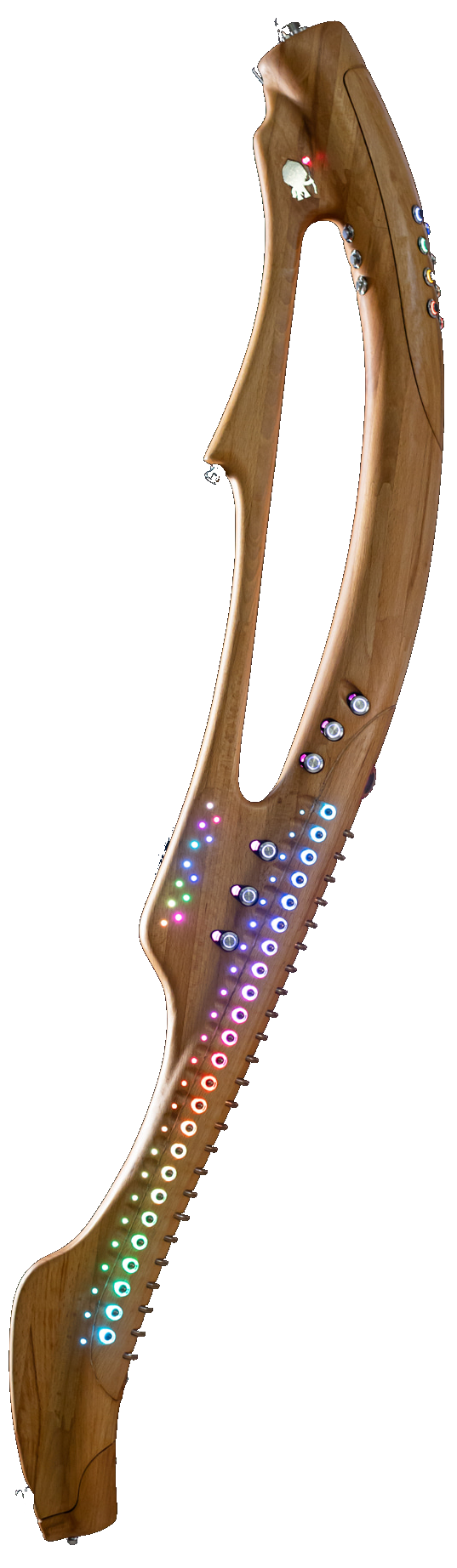
Turning the Kadabra changes the loop feel. The illustration rotates as the loop is stretched.
1
2
3
3-note Viber loopChanging the loop length stretches both the spacing and the note durations.
Main SectionNo Thumb is held
In the Viber Main Section, you can use the first 8 Combis to align the Viber loop rhythmically to the beat, combine those to reach in beat structures.
Combi 1 1/32 BAR Quantized Viber
“1/32” – “BAR” – “Quantized Viber”.
• Hold: opens optional Combinations with:
• Press: syncs the Viber’s loop length to a 1/32 Bar
Combi 2 1/16 BAR Quantized Viber
“1/16” – “BAR” – “Quantized Viber”.
• Hold: opens optional Combinations with:
• Press: syncs the Viber’s loop length to a 1/16 Bar
Combi 3 1/8 BAR Quantized Viber
“1/8” – “BAR” – “Quantized Viber”.
• Hold: opens optional Combinations with:
• Press: syncs the Viber’s loop length to a 1/8 Bar
Combi 4 1/4 BAR Quantized Viber
“1/4” – “BAR” – “Quantized Viber”.
• Hold: opens optional Combinations with:
• Press: syncs the Viber’s loop length to a 1/4 Bar
Combi 5 1/2 BAR Quantized Viber
“1/2” – “BAR” – “Quantized Viber”.
• Hold: opens optional Combinations with:
• Press: syncs the Viber’s loop length to a 1/2 Bar
Combi 6 1 BAR Quantized Viber
“1” – “BAR” – “Quantized Viber”.
• Hold: opens optional Combinations with:
• Press: syncs the Viber’s loop length to 1 Bar
Combi 7 2 BARs Quantized Viber
“2” – “BARs” – “Quantized Viber”.
• Hold: opens optional Combinations with:
• Press: syncs the Viber’s loop length to 2 Bar
Combi 8 4 BARs Quantized Viber
“4” – “BARs” – “Quantized Viber”.
• Hold: opens optional Combinations with:
• Press: syncs the Viber’s loop length to 4 Bars
Combi 9 SPEED Increase
An Arrow Up sign – “SPEED” – “Increase”.
• Press: increases the speed of the Viber’s loop (decreases its length)
Combi 10 SPEED Decrease
An Arrow Down sign – “SPEED” – “Decrease”.
• Press: decreases the speed of the Viber’s loop (increases its length)
Combi 11 GATE % Longer
An Arrow Up sign – “GATE ” Gate Percentage “%” – “Longer”.
• Press: increases the Gate Length.
Combi 12 GATE % Shorter
An Arrow Down sign – “GATE ” Gate Percentage “%” – “Shorter”.
• Press: decreases the Gate Length.
Thumb 1: Viber – ActionsControl your Vibers
In the Viber Thumb 1 Section, hold Thumb 1 to access these Combi functions:
Combi 1 ■/▶ Viber On/Off ch: (Active Sound)
• Press: Starts the Viber on the Active Sound.
Combi 2 🔒/🔓 Viber Flow free flow - no sync
• Press: Viber Motion switch between Synced Rhythm timing (🔒) and free flow (🔓)of the Viber.
Combi 3 ■/▶ SOLO ch: (Active Sound)
• Press: sets Viber On and all Vibers of other channels Off.
Combi 10 Q NO Quantize Keyboard Notes
• Press: Turns Quantizer On or Off on the Active Sound.
Thumb 2: Quantizer controlsQuantize your playing
In the Viber Thumb 2 Section, hold Thumb 2 to access Quantizer options for rhythmic structures.
Combi 1 1/32 BAR Quantized Keyboard
“1/32” – “BAR” – “Quantized Keyboard”.
• Hold: opens optional Combinations with:
• Press: syncs the Viber’s loop length to a 1/32 Bar
Combi 2 1/16 BAR Quantized Keyboard
“1/16” – “BAR” – “Quantized Keyboard”.
• Hold: opens optional Combinations with:
• Press: syncs the Viber’s loop length to a 1/16 Bar
Combi 3 1/8 BAR Quantized Keyboard
“1/8” – “BAR” – “Quantized Keyboard”.
• Hold: opens optional Combinations with:
• Press: syncs the Viber’s loop length to a 1/8 Bar
Combi 4 1/4 BAR Quantized Keyboard
“1/4” – “BAR” – “Quantized Keyboard”.
• Hold: opens optional Combinations with:
• Press: syncs the Viber’s loop length to a 1/4 Bar
Combi 5 1/2 BAR Quantized Keyboard
“1/2” – “BAR” – “Quantized Keyboard”.
• Hold: opens optional Combinations with:
• Press: syncs the Viber’s loop length to a 1/2 Bar
Combi 6 1 BAR Quantized Keyboard
“1” – “BAR” – “Quantized Keyboard”.
• Hold: opens optional Combinations with:
• Press: syncs the Viber’s loop length to 1 Bar
Combi 7 2 BARs Quantized Keyboard
“2” – “BARs” – “Quantized Keyboard”.
• Hold: opens optional Combinations with:
• Press: syncs the Viber’s loop length to 2 Bar
Combi 8 4 BARs Quantized Keyboard
“4” – “BARs” – “Quantized Keyboard”.
• Hold: opens optional Combinations with:
• Press: syncs the Viber’s loop length to 4 Bars
Combi 10 Q NO Quantize Keyboard Notes
• Press: Turns Quantizer On or Off on the Active Sound.
Thumb 3: On/Off other ChannelsViber Console
In the Viber Thumb 3 Section, hold Thumb 3 to change Viber state of other channels, not only the Active Sound. Flicking the 3rd Thumb changes the Active Sound's On/Off Viber state..
Combis 1–12 ■/▶ Sound Name Quantizer: On/Off
Each Combi is a different sound.
• Press: inverts the selection between Viber On (▶) and Viber Off (■) for the selected sound.
Shape 8 · Deep-Red color
FXer

Control knobs and faders of DAWs, VST instruments, and plugins.
The FXER is used to control the effects of the sound channels, open and set the exact amount of a knob of each Plugin in that Midi channel (REVERB, DELAY, EQ or whatever is on that channel). It controls AUDIO channels and INPUT channels, for levels, pan, AUX sends, etc, or any type of Instrument or plugin that needs a lot of tweaking...
In the OS, it is possible to right click on any FXer’s Combi effect to change how it is called (FX Name), pressing ESC will leave the name unchanged.
The Combi FX is the Control Change (CC) number that will be sent in the Midi Message to determine which knob to move in the DAW/V-Instrument/Plugin, the whole message will also have the Midi Channel and FX Amount.
Each Combi in the FXER shape’s Thumb Sections, holds a Combi FX and an FX Amount
FAQ, Tips & Shape InfoQuick FXer overview
48How are FX controls organized?
FXer uses Main, Thumb 1, Thumb 2, and Thumb 3 as four banks of 12 Combis, reaching 48 plugin knobs, faders, and switches.
KBHow do I set an FX amount?
Hold the FX Combi you want to set, then touch a Keyboard amount button to choose one of the available 48 amount steps.
Combis as plugin knobs and faders4 banks × 12 Combis · 48 Keyboard steps · MIDI CC 0–127
In FXer, there are 4 Combi banks: Main, Thumb 1, Thumb 2, and Thumb 3. Each bank gives the 12 Combis a different set of controls, so the same 12 physical Combis can reach 48 plugin knobs, faders, sends, or MIDI CC targets.
Choose a bank in the illustration below: the 12 Combis stay in one horizontal line, but they change to that bank’s 12 targets. When a Combi is held, touching one of the Keyboard buttons sets that held control’s FX amount.
The Keyboard is shown as 24 vertical buttons in one column plus another 24 buttons staggered between them slightly to the right. Together they give 48 amount steps. These 48 performance steps are spread over the MIDI CC range of 0–127, so each touch moves the CC value by about 2–3 MIDI steps.
4 BanksMain + Thumb 1 + Thumb 2 + Thumb 3.
12 CombisOne horizontal Combi line per selected bank.
48 controls4 banks × 12 knobs/faders.
48 Keyboard steps128 MIDI CC values ÷ 48 ≈ 2.7 values per step.
Interactive FXer bank, Combi, and Keyboard amount illustration
Main · Combi 1 · Control 1/48Keyboard amount buttons: 48 stepsHold a Combi, then touch a Keyboard button. The left column has 24 buttons; the right column adds 24 staggered buttons between them, giving 48 possible positions for the held knob/fader.
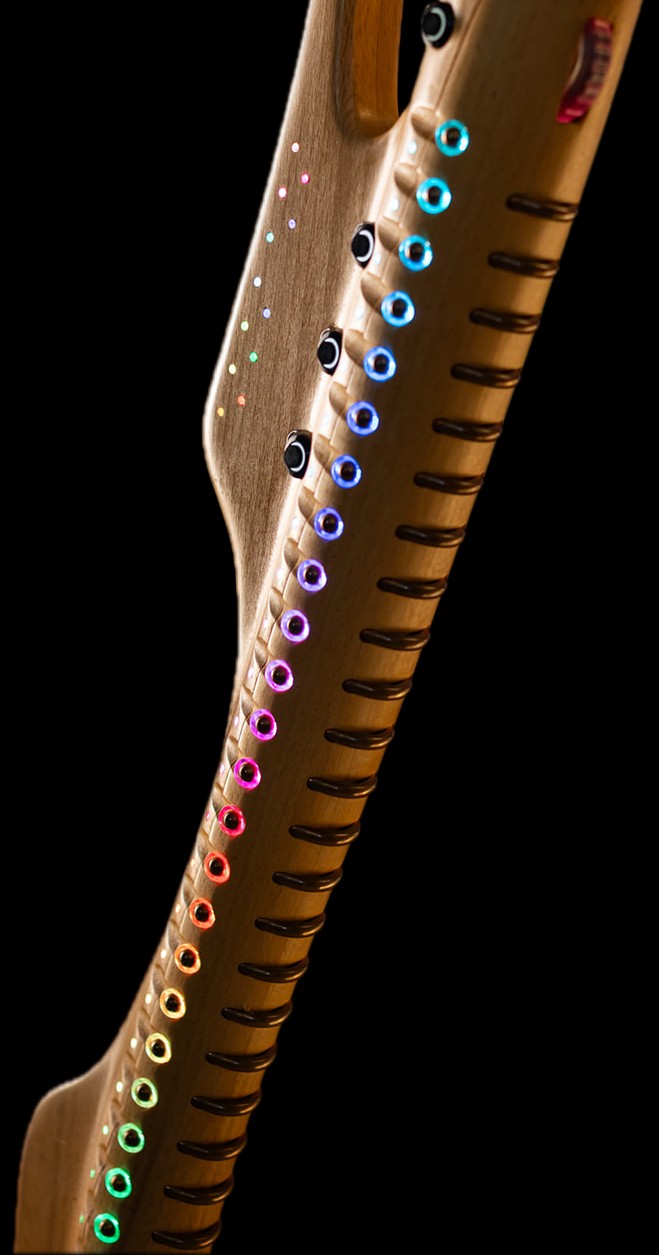
Held Combi valueKeyboard Step 24/48 · CC 62Touch a Keyboard button to set the selected FXer control amount.
MIDI CC has 128 possible values: 0–127. FXer’s 48 Keyboard positions give fast performance control: 128 ÷ 48 ≈ 2.7 MIDI CC values per position.
Main SectionNo Thumb is held
In the FXer Main Section, you can use the first 8 Combis to control KPlayer's Plugins (On/Off) and the last 4 combis to fix specific amounts
Each Combi in the FXER shape’s Main Section holds a Combi FX and an FX Amount
Combi 1 ■/▶ Instrument (AU/VSTi) Turn it On/Off (cc #)
Play Sign (if the Instrument is ON) or Stop Sign (if the Instrument is OFF) – FX Name (Main Bank) “ - On” (if the Instrument is ON) or “ - Off” (if the Instrument is OFF) – “Turn it OFF (cc ” Combi FX “)" or “Turn it ON (cc ” Combi FX “)”.
• Pressing will switch the Instrument On or Off by sending Midi CC 84 (by default to control the K-Player’s Instrument) and the value 127 (on) or 0 (off).
• Hold: changes the Keyboard to the KB FX Configuration:
i. Touching a Keyboard Key will set that Held FX Amount to the amount of the Key.
• Hold: opens the option to assign a new Control Change (CC) message number to the Combi FX (by turning the Wheel up or down, adding or subtracting 1 from the CC Number).
Combi 2 ■/▶ Ch EQ (EQ on/Off) Turn it On/Off (cc#)
Play Sign (if EQ is ON) or Stop Sign (if EQ is OFF) – FX Name (Main Bank) “ - On” (if EQ is ON) or “ - Off” (if EQ is OFF) – “Turn it OFF (cc ” Combi FX “)" or “Turn it ON (cc ” Combi FX “)”.
• Pressing will switch the Plugin On or Off by sending Midi CC 87 (by default to control the K-Player’s Embedded EQ of the channel) and the value 127 (on) or 0 (off).
• Hold: changes the Keyboard to the KB FX Configuration:
i. Touching a Keyboard Key will set that Held FX Amount to the amount of the Key.
• Hold: opens the option to assign a new Control Change (CC) message number to the Combi FX (by turning the Wheel up or down, adding or subtracting 1 from the CC Number).
Combi 3 ■/▶ Pan Turn it On/Off (cc#)
Play Sign (if PAN is on Maximum Right) or Stop Sign (if PAN is on Maximum Left) – FX Name (Main Bank) “ - On” (if PAN is on Maximum Right) or “ - Off” (if PAN is on Maximum Left) – “Turn it OFF (cc ” Combi FX “)" or “Turn it ON (cc ” Combi FX “)”.
• Pressing will switch the Panning Left or Right by sending Midi CC 7 (by default to control the K-Player’s PAN of the channel) and the value 127 (Right) or 0 (Left).
• Hold: changes the Keyboard to the KB FX Configuration:
i. Touching a Keyboard Key will set that Held FX Amount to the amount of the Key.
• Hold: opens the option to assign a new Control Change (CC) message number to the Combi FX (by turning the Wheel up or down, adding or subtracting 1 from the CC Number).
Combi 4 ■/▶ Volume Turn it On/Off (cc#)
Play Sign (if Channel Volume is on maximum) or Stop Sign (if Channel Volume is OFF) – FX Name (Main Bank) “ - On” (if Channel Volume is on maximum) or “ - Off” (if Channel Volume is OFF) – “Turn it OFF (cc ” Combi FX “)" or “Turn it ON (cc ” Combi FX “)”.
• Pressing will switch the Channel Volume to maximum or minimum by sending Midi CC 10 (by default to control the K-Player’s Level of the channel) and the value 127 (maximum) or 0 (minimum).
• Hold: changes the Keyboard to the KB FX Configuration:
i. Touching a Keyboard Key will set that Held FX Amount to the amount of the Key.
• Hold: opens the option to assign a new Control Change (CC) message number to the Combi FX (by turning the Wheel up or down, adding or subtracting 1 from the CC Number).
Combi 5 ■/▶ Plugin 1 (AU/VST) Turn it On/Off (cc#)
Play Sign (if effect Plugin 1 is ON) or Stop Sign (if effect Plugin 1 is OFF) – FX Name (Main Bank) “ - On” (if effect Plugin 1 is ON) or “ - Off” (if effect Plugin 1 is OFF) – “Turn it OFF (cc ” Combi FX “)" or “Turn it ON (cc ” Combi FX “)”.
• Pressing will switch the Plugin On or Off by sending Midi CC 85 (by default to control the K-Player’s 1st Plugin of the channel) and the value 127 (on) or 0 (off).
• Hold: changes the Keyboard to the KB FX Configuration:
i. Touching a Keyboard Key will set that Held FX Amount to the amount of the Key.
• Hold: opens the option to assign a new Control Change (CC) message number to the Combi FX (by turning the Wheel up or down, adding or subtracting 1 from the CC Number).
Combi 6 ■/▶ Plugin 2 (AU/VST) Turn it On/Off (cc#)
Play Sign (if effect Plugin 2 is ON) or Stop Sign (if effect Plugin 2 is OFF) – FX Name (Main Bank) “ - On” (if effect Plugin 2 is ON) or “ - Off” (if effect Plugin 2 is OFF) – “Turn it OFF (cc ” Combi FX “)" or “Turn it ON (cc ” Combi FX “)”.
• Pressing will switch the Plugin On or Off by sending Midi CC 86 (by default to control the K-Player’s 2nd Plugin of the channel) and the value 127 (on) or 0 (off).
• Hold: changes the Keyboard to the KB FX Configuration:
i. Touching a Keyboard Key will set that Held FX Amount to the amount of the Key.
• Hold: opens the option to assign a new Control Change (CC) message number to the Combi FX (by turning the Wheel up or down, adding or subtracting 1 from the CC Number).
Combi 7 ■/▶ Plugin 3 (AU/VST) Turn it On/Off (cc#)
Play Sign (if effect Plugin 3 is ON) or Stop Sign (if effect Plugin 3 is OFF) – FX Name (Main Bank) “ - On” (if effect Plugin 3 is ON) or “ - Off” (if effect Plugin 3 is OFF) – “Turn it OFF (cc ” Combi FX “)" or “Turn it ON (cc ” Combi FX “)”.
• Pressing will switch the Plugin On or Off by sending Midi CC 88 (by default to control the K-Player’s 3rd Plugin of the channel) and the value 127 (on) or 0 (off).
• Hold: changes the Keyboard to the KB FX Configuration:
i. Touching a Keyboard Key will set that Held FX Amount to the amount of the Key.
• Hold: opens the option to assign a new Control Change (CC) message number to the Combi FX (by turning the Wheel up or down, adding or subtracting 1 from the CC Number).
Combi 8 ■/▶ Plugin 4 (AU/VST) Turn it On/Off (cc#)
Play Sign (if effect Plugin 4 is ON) or Stop Sign (if effect Plugin 4 is OFF) – FX Name (Main Bank) “ - On” (if effect Plugin 4 is ON) or “ - Off” (if effect Plugin 4 is OFF) – “Turn it OFF (cc ” Combi FX “)" or “Turn it ON (cc ” Combi FX “)”.
• Pressing will switch the Plugin On or Off by sending Midi CC 89 (by default to control the K-Player’s 4th Plugin of the channel) and the value 127 (on) or 0 (off).
• Hold: changes the Keyboard to the KB FX Configuration:
i. Touching a Keyboard Key will set that Held FX Amount to the amount of the Key.
• Hold: opens the option to assign a new Control Change (CC) message number to the Combi FX (by turning the Wheel up or down, adding or subtracting 1 from the CC Number).
Combi 9 # (FX Name) Hold to set (cc #)
FX Amount (for the Combi) – FX Name (Main Bank) – “Hold to Set (cc ” Combi FX “)”.
• Pressing will switch the Plugin On or Off by sending Midi CC 89 (by default to control the K-Player’s 4th Plugin of the channel) and the value 127 (on) or 0 (off).
• Hold: changes the Keyboard to the KB FX Configuration:
i. Touching a Keyboard Key will set that Held FX Amount to the amount of the Key.
• Hold: opens the option to assign a new Control Change (CC) message number to the Combi FX (by turning the Wheel up or down, adding or subtracting 1 from the CC Number).
Combi 10 # (FX Name) Hold to set (cc #)
FX Amount (for the Combi) – FX Name (Main Bank) – “Hold to Set (cc ” Combi FX “)”.
• Pressing will switch the Plugin On or Off by sending Midi CC 89 (by default to control the K-Player’s 4th Plugin of the channel) and the value 127 (on) or 0 (off).
• Hold: changes the Keyboard to the KB FX Configuration:
i. Touching a Keyboard Key will set that Held FX Amount to the amount of the Key.
• Hold: opens the option to assign a new Control Change (CC) message number to the Combi FX (by turning the Wheel up or down, adding or subtracting 1 from the CC Number).
Combi 11 # (FX Name) Hold to set (cc #)
FX Amount (for the Combi) – FX Name (Main Bank) – “Hold to Set (cc ” Combi FX “)”.
• Pressing will switch the Plugin On or Off by sending Midi CC 89 (by default to control the K-Player’s 4th Plugin of the channel) and the value 127 (on) or 0 (off).
• Hold: changes the Keyboard to the KB FX Configuration:
i. Touching a Keyboard Key will set that Held FX Amount to the amount of the Key.
• Hold: opens the option to assign a new Control Change (CC) message number to the Combi FX (by turning the Wheel up or down, adding or subtracting 1 from the CC Number).
Combi 12 # (FX Name) Hold to set (cc #)
FX Amount (for the Combi) – FX Name (Main Bank) – “Hold to Set (cc ” Combi FX “)”.
• Pressing will switch the Plugin On or Off by sending Midi CC 89 (by default to control the K-Player’s 4th Plugin of the channel) and the value 127 (on) or 0 (off).
• Hold: changes the Keyboard to the KB FX Configuration:
i. Touching a Keyboard Key will set that Held FX Amount to the amount of the Key.
• Hold: opens the option to assign a new Control Change (CC) message number to the Combi FX (by turning the Wheel up or down, adding or subtracting 1 from the CC Number).
Any Combi NAME Change the FX Name
Change the FX name using Right Click on the Combi and write the FX Name you want.
Thumb Effect BanksThumb 1 · Thumb 2 · Thumb 3
In FXer, Thumb 1, Thumb 2, and Thumb 3 are Effect Banks. Holding a Thumb changes the same 12 physical Combis to that bank’s 12 FX targets.
- Thumb 1 = Effect Bank 1.
- Thumb 2 = Effect Bank 2.
- Thumb 3 = Effect Bank 3.
- Together with Main, FXer reaches 48 plugin knobs, faders, and switches.
Combis 1–12FXFX targets inside the selected Effect Bank
Each Combi can hold an ON/OFF to disable and enable instruments, plugins, or other on/off switches inside instruments or plugins.
Showing the Midi amount in the circle and the given name in the main Combi text (can be set by right clicking the circle).
• Hold: changes the Keyboard to the KB FX Configuration, Touching a Keyboard Key will set that Held FX Amount to the amount of the Key.
• Hold: opens the option to assign a new Control Change (CC) message number to the Combi FX of Bank 3 (by turning the Wheel up or down, adding or subtracting 1 from the CC Number).
Effect Bank 1
Hold Thumb 1 to use Bank 1’s 12 FX Combi targets.
Effect Bank 2
Hold Thumb 2 to use Bank 2’s 12 FX Combi targets.
Effect Bank 3
Hold Thumb 3 to use Bank 3’s 12 FX Combi targets.
Shape 9 · Dark-Red color
Sounder

Control and assign sounds to a Keyboard row.
For changing sounds, operate their features and assigning them to the Keyboard, to be played.
When Kadabra is in SOUNDS shape, you can pick a few sounds, and assign them to one of the Keyboard Rows, choose a main Active Sound for manipulation, and activate features like the Arper and Viber to it, you can change specific sounds from being STATIC (for samples) to being RELATIVE (for harmonic instruments), and many other Sound related actions.
In the OS, it is possible to right click on any Combi to change how it is called (Sound Name), pressing ESC will leave the name unchanged.
In Sounder’s Main Section, pressing the PRS force sensor will set the Channels Volume Fader (in the K-Player) by sending Midi CC 7 (can be assigned to any DAW’s Volume Fader).
Changing sounds can be interpreted as assigning a different sound to the Keyboard (used in Sounder’s Main section), but sometimes is used for actually changing the sound in the Kadabra-Player or the users DAW software.
FAQ, Tips & Shape InfoQuick Sounder overview
1stWhat should I set first?
Choose the Active Sound before using Sounder actions. The Active Sound is the Sound that editing and Shape actions target
- Don’t hold a Thumb button.
- Choose the Active Sound (flick a Combi).
PRSHow do PRS controls affect volume?
PRS-1 changes the Active Sound Volume in a sticky way. PRS-2 changes the Active Sound Volume in a dynamic way.
- Use it for rhythmic motifs.
- Use it for melodic riffs and flowing phrases.
- It can be Static or Relative depending on your needs.
KPTips for working with the KPlayer
- Make sure you use the same Virtual Instrument in your KPlayer channel as chosen in Sounder -> Thumb 1 -> Combi 4.
- Use Sounder -> Thumb 1 -> Combi 8, to select the relevant preset styles when loading.
- Set a melodic sound to "Relative Loop" and "Relative Arp" by Holding to Thumb 1.
- Start the Viber or Arper directly from Thumb 1 -> Combi 6 and 7
PRS volume controlPRS-1 sticky · PRS-2 dynamic · Active Sound volume
PRS controls the Active Sound channel volume. In Sounder, the PRS force sensor sends Volume control to the Active Sound’s channel, aligned with MIDI CC 7 / Channel Volume.
PRS-1 Sticky Volume
PRS-1 changes the Volume of the Active Sound in a sticky way: the last pressure value becomes the Active Sound volume and stays there after the touch is released.
PRS-1set & keep
Active Sound Volumestays
pressreleasevolume remains
PRS-2 Dynamic Volume
PRS-2 changes the Volume of the Active Sound in a dynamic way: the volume follows the live pressure movement while you play, instead of becoming the sticky stored level.
PRS-2live move
Active Sound Volumefollows
pressmove pressurelive volume
Active Sound target: PRS volume control is aimed at the currently Active Sound, so choosing another Active Sound changes which channel volume the PRS action controls.
Main SectionPick a few sounds to each keyboard row
In the Sounder Main Section, you can use the 12 Combis to select which sounds will be playable in the Keyboard and in which Keyboard Row
In Sounder’s Main Section, the Combi’s shown on the OS have an extra Volume part on their top with a Volume amount that can be aligned with the Channel’s Volume Fader.
Combis 1–12 Ch. Each Combi is a different sound channel any group of channels can be Used In any Keyboard row
the Combi Circle says: Midi Channel number.
the Combi Title says: Sound Name (Default is just Sound 1 / Sound 2 / Sound 3... and so on, depending on the Midi channel number)
The Combi Extra text says: “Play Sound” or “Used In Keyboard” (for sounds that are used in both rows of the Keyboard) or “In Keyboard Row“ and then the row number (for sounds that are only used in that row).
• Hold: allows adding more Combi Sounds to the Keyboard, the first Combi that was held will become the Active Sound.
• Hold: lets the player touch one of the Keyboard rows (any Key of the row):
i. Touching a Keyboard Key will insert that sound (and any Sound that its Combi was held together) to that Keyboard Row.
• Release: adds the Held Combis to the Keyboard, or if a Keyboard Row was touched when the Combis were held, adds the Held Combis to that Keyboard row.
Thumb 1: Set ActionsActive Sound's Main Controls
for your chosen Active Sound, this is the section to control it. From selecting the VST/AU instrument type and deciding if its a rhythmic or melodic instrument, to controling if it is playing in the looper, has a Viber or Arper on and many more.
The Follow Harmony Combi Menu is similar to the Harmoner’s Thumb 1 Follow Harmony Combi Menu
Combi 1 / Follow Harmony Recorded in the Loop
The Followed Sound Channel (if the Active sound is in Static-Mode in the Looper there will be a “/” on the number) – “Follow Harmony” – “Recorded in the Loop” or “Don’t”.
• Press: opens a new Combi option:
i. Combis 1-8: Channel Number – Sound Name – “channel ” Channel Number.
• Press: Makes the Active Sound follow the Selected Sound’s Harmonies that were recorded in its Loop (if playing).
• Press: Makes the Active Sound follow its own Harmonies that were recorded in its Loop (if playing).
• Press: in Static mode: Disables any following of Harmonies, Looped or played Live. In Relative Mode: Makes the Active Sound follow any Harmonic changes made live, while playing.
• Stays in the present Harmonic Mode
• changes Combis 1 till 8 (channels 1 to 8), to channels 9-16 for Combis 1 to 8 respectively
Combi 2 On To Balls Row To Balls Row
Set chosen sounds to the Balls row only
Combi 3 On to Bars Row To Bars Row
Set chosen sounds to the Bars row only
Combi 4 🎹 AU / VST Used Integrated features
Connect to integrate an AU or VST to the specific Active Sound, for Program Change and other functionality
Combi 5 ■/▶ Looper
A Play Sign or a Stop Sign – “Looper “ a play or stop sign for the Sequence only and play or stop sign for the Loop only – “ch: “ Active Sound’s Channel Number “ seq:” a play or stop sign for the Sequence only “ loop:” a play or stop sign for the Loop only.
• Press: Mutes or Unmutes the Midi notes of the Active Sound for the whole Looper, seq and loop can still be muted locally for that Sound inside the Looper.
Combi 6 ■/▶ Arper
A Play Sign or a Stop Sign – “Arper“ - “ch: “ Active Sound’s Channel Number.
• Press: Enables or Disables the Arper of the Active Sound.
Combi 7 ■/▶ Viber
A Play Sign or a Stop Sign – “Viber“ - “ch: “ Active Sound’s Channel Number.
• Press: Enables or Disables the Viber of the Active Sound.
Combi 8 🎹 Instrument
The Initials of the Companion Instrument of the sound – “Instrument” – The name of the Companion Instrument selected for the Active Sound.
• Press: opens a new Combi option:
• Press: Picks Melodic Instrument as the Companion Instrument for the Active Sound.
• Press: Picks Kadabra’s dedicated Electronic Drumkit Virtual Instrument as the Companion Instrument for the Active Sound.
• Press: Picks Kadabra’s dedicated Percussion Virtual Instrument as the Companion Instrument for the Active Sound.
• Press: Picks Kadabra’s dedicated Acoustic Drums Virtual Instrument as the Companion Instrument for the Active Sound.
• Press: Picks the 1st User Instrument as the Companion Instrument for the Active Sound.
• Press: Picks the 2nd User Instrument as the Companion Instrument for the Active Sound.
• Press: Picks the 3rd User Instrument as the Companion Instrument for the Active Sound.
• Press: Picks the 4th User Instrument as the Companion Instrument for the Active Sound.
Combi 9 🔒/🔓 Static / Relative Looper Relative Loop
“Notes” – “Static Loop” or “Relative Loop” – “set to Relative” or “set to Static”.
• Press: switches between Static-Mode and Relative-Mode for the Active Sound in the Looper.
Combi 10 🔒/🔓 Static / Relative Arper Relative Arp
“Notes” – “Static Arp” or “Relative Arp” – “set to Relative” or “set to Static”.
• Press: switches between Static-Mode and Relative-Mode for the Active Sound in the Arper.
Combi 11 OFF Quantizer Quantizer
“OFF” or “ON” – “Quantizer” – “set to ON” or “set to OFF”.
• Press: switches between using the Quantizer and not using the Quantizer for the Active Sound.
Combi 12 → Sounds 4-16 go to 4-16
An Arrow Right Sign or an Arrow Left Sign – “Sounds 1-12” or “Sounds 4-16” – “go to 4-16” or “go to 1-8”.
• Press: switches between showing the first 12 Sounds and the other 12 sounds 4 to 16, mostly used for picking the sounds in the Sounder shape, and in “Mix Channels” (Thumb 3) of the Looper, the Arper, Viber and some other feature that need to reach sounds 13, 14, 15, and 16.
Thumb 2: Change SoundProgram Change and other Synth controls
In the Sounder Thumb 2 Section, hold Thumb 2 to access Preset change inside a Sound (a Midi channel that uses a Synth or a Sampler).
You can set a few sounds in the same synth and save each sound in one of the first 8 different combis, then jump between those sounds easily
Combi 1 12 To Sound (Program change number)
Change the preset of the synth to that sound exactly.
• Press: picks that sound preset number and sends a program change midi message to switch to that sound.
Combi 2 15 To Sound (Program change number)
Change the preset of the synth to that sound exactly.
• Press: picks that sound preset number and sends a program change midi message to switch to that sound.
Combi 3 16 To Sound (Program change number)
Change the preset of the synth to that sound exactly.
• Press: picks that sound preset number and sends a program change midi message to switch to that sound.
Combi 4 17 To Sound (Program change number)
Change the preset of the synth to that sound exactly.
• Press: picks that sound preset number and sends a program change midi message to switch to that sound.
Combi 5 18 To Sound (Program change number)
Change the preset of the synth to that sound exactly.
• Press: picks that sound preset number and sends a program change midi message to switch to that sound.
Combi 6 19 To Sound (Program change number)
Change the preset of the synth to that sound exactly.
• Press: picks that sound preset number and sends a program change midi message to switch to that sound.
Combi 7 20 To Sound (Program change number)
Change the preset of the synth to that sound exactly.
• Press: picks that sound preset number and sends a program change midi message to switch to that sound.
Combi 8 21 To Sound (Program change number)
Change the preset of the synth to that sound exactly.
• Press: picks that sound preset number and sends a program change midi message to switch to that sound.
Combi 9 ↑ Program (the Sound Preset number that will be when jumping a preset up)
Load the Next Program (Preset) in the Bank.
• Press: picks the next preset above the sound preset in the chosen Bank - it sends a program change midi message to switch to that sound.
Combi 10 ↓ Program (the Sound Preset number that will be when jumping a preset down)
Load the Previous Program (Preset) in the Bank.
• Press: picks the previous preset above the sound preset in the chosen Bank - it sends a program change midi message to switch to that sound.
Combi 11 ↑ Bank (the Sound Preset number that will be when jumping a preset Bank Up)
Load the Next Program Bank of the AU/VST.
• Press: picks 1 Preset below the Sound Preset and sends a Program Change Midi message to switch to that sound.
Combi 12 ↓ Bank (the Sound Preset number that will be when jumping a preset Bank Down)
Load the Previous Program Bank of the AU/VST.
• Press: picks the previous Preset Bank under the chosen sound's Preset Bank - it sends a Bank change midi message to switch to that Bank.
Thumb 3: Set ActiveChoose a different Active Sound
In the Sounder Thumb 3 Section, hold Thumb 3 to choose an Active Sound. an Active Sound is the sound that is being changed when setting any sound setting like:
Changing a Preset in the synth
Switching Looper between Relative to Static Mode
Changing Loop/Seq Length
Changing Loop/Seq Pattern
Switching Arper between Relative to Static Mode
Switching Viber On / Off
Changing the Pitchbend axis in the Motion
These are all channel related, and works only on the Active Sound
Combis 1–12 # (Sound Name) Set as Active
Midi Channel number – Sound Name (Default is “Sound ” and its Midi channel number) – “Set as Active”.
• Press: Selects the Sound (Midi channel) stated in the Combi as the Active Sound. An Active Sound is the sound that is being changed when setting any sound setting like:
Changing a Preset in the synth
Switching Looper between Relative to Static Mode
Changing Loop/Seq Length
Changing Loop/Seq Pattern
Switching Arper between Relative to Static Mode
Switching Viber On / Off
Changing the Pitchbend axis in the Motion
These are all channel related, and works only on the Active Sound
Shape 10 · Lime-Green color
Arranger
Record and arrange MIDI and Kadabra actions.
(Beta Only)
Shape 11 · Dark-Grey color
Shaper

Set your most-used Shapes into your Shifters.
For Assigning Shapes into Shifters and choosing a Main Shape.
Shifter buttons can be assigned to other Shapes using the SHAPER Shape, Shifters are used to quickly turn your Kadabra into a different instrument (shape) for a moment and use the shape's special features while playing.
The “Assigned Shifter” is the Shifter that has the mentioned Shape assigned to it.
A Held Thumb will act exactly as a Held Shifter and will assist in assigning a Shape to a Shifter, Thumb 1 for Shifter 1, Thumb 2 for Shifter 2 and Thumb 3 for Shifter 3.
FAQ, Tips & Shape InfoQuick Shaper overview
ShiftWhat does Shaper assign?
Shaper assigns Shapes into Shifter buttons and chooses the Main Shape. Shifters let Kadabra temporarily act as another Shape while playing.
ThumbWhy one Thumb block?
Thumbs in Shaper do not open separate option sets. They are used in the Main Section to target Shifter 1, Shifter 2, or Shifter 3.
Main SectionNo Thumb is held
In the Shaper Main Section, you can choose your MAIN shape (the one that is Active if no other Shifter was chosen), or to assign a Shape to a Shifter in the Kadabra by holding that Shifter before chosing a Shape
Combis 1–12 M (Shape Name) As Main / In Shifter
“” or “MAIN” or the Assigned Shifter Number – Shape Name – “as MAIN shape” or if a Thumb or Shifter is held then “to Shifter ” Shifter number.
• Press: when no Shifter or Thumb is held: will set the selected Shape as the Main Shape and shift into it immediately.
• Press: when a Shifter or a Thumb is held: will assign the selected Shape to that Held Shifter and stays in the Shaper Shape.
Thumb ShiftersThumb 1 · Thumb 2 · Thumb 3
In Shaper, the three Thumbs do not open separate option banks. They are used in the Main Section to target Shifter 1, Shifter 2, or Shifter 3.
- Thumb 1 = Into Shifter 1.
- Thumb 2 = Into Shifter 2.
- Thumb 3 = Into Shifter 3.
Thumbs in the Shaper Shape are not opening any options, they are only used in the Main Section.
No separate Thumb Combi details are listed because Shaper Thumbs work together with the Main Section.
Shape 12 · Brown color
Setuper

Calibrate and set up system behavior.
Set your Kadabra’s Lights level, Thread speed and other features that can help in calibrating usage to your needs and supporting equipment.
FAQ, Tips & Shape InfoQuick Setuper overview
InfoWhat is Setuper for?
Setuper is for Kadabra setup features such as Lights level, Thread speed, calibration, usage needs, and supporting equipment.
TipCalibrate your system
If you are experiancing any slow keyboard response, it might be because the OS is guarding your computer's performance where it shouldn't, just hold thumb 1 and try calibrating your system to the fastest options for each thread.
Main SectionNo Thumb is held
In the Setuper Main Section, you can change basic Kadabra settings like visuals, Auto-Save, and safety frames.
Combi 1 1 GUI Design Type small touches
Design Type – “GUI Design Type” – “small touches”
Combi 2 5 AUTO-SAVE pause between
Time in Minutes Seconds - for every Auto-Save
• Hold: changes the Keyboard to something like the KB FX Configuration to choose the amount of pause between each Auto-Save.
• Holding the Combi and Touching the Keyboard sets the Auto-Save Pause Amount.
Combi 5 0 KB Damaged touch KB sensor
Set a Keyboard key that is damaged and it is better be disabled
• Hold: lets the player remove Keyboard Keys that are malfunctioning, if a Keyboard Key is switching on and off without relevance to playing, the Keyboard Key can be removed from the OS not to disturb the rest of the functionality. Please make sure to contact your Kadabra Vendor to appoint a lab-fix in that case.
Combi 6 40 Button Damage On/Off Minimum Speed
Set a button (like a Combi or a Shifter) not to retrigger on release by mistake”
• Press: opens a Combi option to change the minimum time for pressing a Combi:
i. Combi 1-12: Milliseconds – “Milliseconds” – “On/Off Min. Speed”
ii. Pressing a different speed will change the protection buffer for damaged buttons, buttons that are sending 2 triggers per press can be avoided this way, but that protection delays any press by those buttons. Please make sure to contact your Kadabra Vendor to appoint a lab-fix in that case.
Combi 7 30 Viber Minimum Speed (in milliseconds)
Milliseconds and “Millis” – “Viber Minimum” – “Speed”
• Holding changes title to: Milliseconds – “ Viber Min. Speed” – “touch KB for length”
• Hold: changes the Keyboard to something like the KB FX Configuration to choose the minimum length of the Viber’s Loop (to low can cause missing note-off Midi messages).
• Holding the Combi and Touching the Keyboard sets the minimum Viber Loop length to the Kadabra.
Combi 8 100 Lights Level Change
Your Kadabra’s Lights Levels – “Lights Level” – “Change”
• Press: opens a Combi option to change the Lights intensity of your Kadabra:
i. Combi 1-12: Your Kadabra’s Lights Levels – “Lights Level” – “for Kadabra’s Lights”
ii. Pressing will change the Lights level to a connected Kadabra. That Kadabra will always start with those light’s levels until changed here again.
Combi 9 BG Background Type
“NO BG” or “SPACE BG” – “Background” – “Type”
• Hold: opens a Combi option to change the background of your Kadabra OS:
• Pressing will change the background to a clear color of the shapes.
•
• Pressing will change the background to space images in the shapes color.
Combi 10 Keys LOUD in creating sequences
“LOUD” - “KEYS” – “in creating sequences” (Beta Only)
Combi 11 # All Sounds Is effected
“” – “Active Sound” or “All Sounds” – “Is effected” or “are effected” (Beta Only)
Combi 12 0 GUI Angle touch KB for angle
0 till 4.00 – “GUI Angle” – “touch KB for angle”.
• Hold: changes the Keyboard to something like the KB FX Configuration to choose the angle of the Combi area of the Kadabra OS, 0 is square, 4 is the maximum angle.
Thumb 1: System PerformanceCalibrate Kadabra OS for your computer's performance
In the Setuper Thumb 1 Section, hold Thumb 1 to access System Performance Combi functions. Different threads are controlling different actions, they can be calibrated for your specific usage
Combi 1 16 Main Thread Low = Max Performance
Main Software Thread – Effecting All system Performance
• Action HOLD: changes the Keyboard's lighting. touching the keyboard - lets you select the speed of the Main Thread/Core of the Kadabra OS software. the change can effect the Kadabra's response VERY much! the lowest the value (top of the keyboard), the faster the thread is.
Combi 2 0.2 Play Thread Low = Max Performance
Playing Thread – Effecting touch to Midi response speed
• Action HOLD: changes the Keyboard's lighting. touching the keyboard - lets you select the speed of the Playing communication thread of the Kadabra OS software. this changes Kadabra's playing response! the lowest the value (top of the keyboard), the faster the thread is.
Combi 3 0.2 BPM Thread Low = Max Performance
Beat Thread – Effecting Beat accuracy (jitter)
• Action HOLD: changes the Keyboard's lighting. touching the keyboard - lets you select the speed of the BPM thread of the Kadabra OS software. this changes Kadabra's beat accuracy! the lowest the value (top of the keyboard), the faster the thread is.
Combi 4 0.2 Midi Thread Low = Max Performance
Midi Thread – Effecting Smart Midi Effects accuracy (Looper, Sequencer, Arper, Viber, Quantizer)
• Action HOLD: changes the Keyboard's lighting. touching the keyboard - lets you select the speed of the Midi thread of the Kadabra OS software. this changes Kadabra's Beat accuracy for any Midi effect used (Looper, Arper, Viber, Quantizer)! the lowest the value (top of the keyboard), the faster the thread is.
Thumb 2: Kadabra CalibrationCalibrate internal features inside the Kadabra
In the Setuper Thumb 2 Section, hold Thumb 2 to access Kadabra Calibration Combi functions.
The functions you choose here to perform, are BURNING your Kadabra's brain to be more accurate for your usual environment, your specific needs and the delicate chip placing that every electronic equipment has, but can be important to calibrate in a musical instrument.
Combi 1 6 Keyboard Pulse Keyboard vs. Battery
“6” – “Keyboard Pulse” – “Keyboard vs. Battery”.
• Action HOLD: changes the Keyboard to something like the KB FX Configuration to choose the speed of the Keyboard scanning inside the Kadabra (not in the Kadabra OS software). the change can effect the Kadabra's keyboard response VERY much! but can also make it too unstable in areas of intence communication frequencies. the lowest the value (top of the keyboard), the faster the scan is. faster scans are taking more battery.
Combi 2 7 Keyboard Touch Hold and move Wheel
“7” – “Keyboard Touch” – “Hold and move Wheel”.
• Action HOLD: by holding this Combi and moving the Wheel, you can change the response for Keyboard touch sensitivity. extreme enviroments (like high humidity) can change the touching response and even create a phantom touch, this is the placed to calibrate the Keyboard touch response! dont change it too far away so it can respond to your playing without missing notes or triggering notes from finger proximity. the lower the value (1), the more sensitive the Keyboard is.
Combi 3 8 Keyboard Release Hold and move Wheel
“8” – “Keyboard Release” – “Hold and move Wheel”.
• Action HOLD: by holding this Combi and moving the Wheel, you can change the response for Keyboard release sensitivity. extreme enviroments (like high humidity) can change the touching response and even create a missing release for a keyboard touch, this is the placed to calibrate the Keyboard release response! dont change it too far away so it can respond to your note release without missing a note off signal. the lower the value (1), the more sensitive the Keyboard release is.
Combi 5 A Accelerometer getting values
“A” – Accelerometer – “getting values”.
• Action PRESS: by pressing this Combi the Accelerometer scaning and communication can be disabled and the system can have more resources to deal with communication issues and system performance issues. a last resort for an old system.
Combi 6 20 Motion Pulse Default is 80
“20” – “Motion Pulse” – “Default is 80”.
• Action HOLD: much like the keyboard pulse, it changes the Keyboard to something like the KB FX Configuration to choose the speed of the motion scanning inside the Kadabra (not in the Kadabra OS software). the change can effect the Kadabra's motion smoothness VERY much! but can also make it too unstable in areas of intence communication frequencies and send too many Midi messages and block the system. the lowest the value (top of the keyboard), the faster the scan is. faster scans are taking more battery.
Combi 7 C Gyroscope press to calibrate
“C” – “Gyroscope” – “press to calibrate”.
• Action PRESS: by pressing this Combi, the Gyro (Motion lines 4, 5 and 6) is sending Calibration data to fix Gyro-drift in case you feel that the Motion is drifting away slowly. after pressing this Combi, go to the Motion section (bottom left) while still in the Setuper shape in the Kadabra OS, and micro change the drift by using the arrows of each Gyro axis. tap your kadabra's body several times to see where the drift goes and press the arrow TO THE DIRECTION OF THE DRIFT! continue this action untill there is no drift. video tutorial available in Tribal-Tools.com
Combi 8 M Magnetometer disable/enable
“M” – “Magnetometer” – “disable/enable”.
• Action PRESS: by pressing this Combi the Magnetometer will be disables and there will be no scanning and no communication. We recommend disabling the Magnetometer if you are not using it, the system can have more resources to deal with communication issues and system performance issues. a first action for an older system.
Combi 10 SL Shape Lights Hold to Inc/Decrease
“SL” – “Shape Lights” – “Hold to Inc/Decrease”.
• Action HOLD: changes the Keyboard to something like the KB FX Configuration to choose the light intencity (brightness) of the Logo LED and the 3 color LEDs of the shifters. the change is happening inside the Kadabra (not in the Kadabra OS software), and will be saved for future brightness every time you power that Kadabra ON.
Thumb 3: ----–Empty
a placeholder for future features.
No Combi details listed yet for this section.
Shape 13 · Indigo-Purple color
Senser

Motion control, PRS, and other sensor features.
The Senser Shape is a shape to calibrate and assign all your sensors to functionalities of the Kadabra.
To reach the Senser Shape: press and release the Senser button (Util button 1)
The Motion Sensors has 9 different Motion Axis, each one of them has a different Midi cc number that will be sent with its value if the Motion Axis is ON.
Each Motion Axis has a Base Starting Point marked by a red line on its Motion Axis bar, the Base Starting Point is where the Motion Axis starts each time the Motion is reactivated.
Holding the Senser button (Util 3) and pressing the top PRS force sensor will change the Minimum Velocity of the Keyboard, so whenever the sensitive Keyboard keys are pressed, the outcome for the velocity will be between that Minimum Velocity to the actual force pressed on the Keyboard Key.
FAQ, Tips & Shape InfoQuick Senser overview
?What is Senser for?
Senser calibrates and assigns Kadabra sensors. The Motion sensor has 6 Axis directions, each with its own MIDI CC value when active.
TipStart from the base point
Each Motion Axis has a base starting point. Use Senser to decide what each active Axis controls.
Main SectionNo Thumb is held
In the Senser Main Section, you can use Combis 1, 2 and 3, or 5, 6, and 7 to send a Midi Control Change (cc message) of a Motion Axis for MIDI Learn Plugins connection.
Combi 8, can create a base position snap to calibrate a specific wanted starting Motion position for the Active Sound
Combis 9, 10 and 11 are there to assign the Pitchbend to an axis and Combi 12 removes it from any axis
Combi 1 X Accelerometer MIDI cc
“X” – “Accelerometer” – “MIDI cc ” Midi cc number for Motion Axis 1
• Press: sends a Midi cc message of the Midi cc number for Motion Axis 1 with 120 value.
Combi 2 Y Accelerometer MIDI cc
“Y” – “Accelerometer” – “MIDI cc ” Midi cc number for Motion Axis 2
• Press: sends a Midi cc message of the Midi cc number for Motion Axis 2 with 120 value.
Combi 3 Z Accelerometer MIDI cc
“Z” – “Accelerometer” – “MIDI cc ” Midi cc number for Motion Axis 3
• Press: sends a Midi cc message of the Midi cc number for Motion Axis 3 with 120 value.
Combi 5 X Gyroscope MIDI cc
“X” – “Gyroscope” – “MIDI cc ” Midi cc number for Motion Axis 4
• Press: sends a Midi cc message of the Midi cc number for Motion Axis 4 with 120 value.
Combi 6 Y Gyroscope MIDI cc
“Y” – “Gyroscope” – “MIDI cc ” Midi cc number for Motion Axis 5
• Press: sends a Midi cc message of the Midi cc number for Motion Axis 5 with 120 value.
Combi 7 Z Gyroscope MIDI cc
“Z” – “Gyroscope” – “MIDI cc ” Midi cc number for Motion Axis 6
• Press: sends a Midi cc message of the Midi cc number for Motion Axis 6 with 120 value.
Combi 8 SET Gyro Base Start Defaults
“SET” – “Gyro Base” – “Start Defaults”
• Press: Keeps the current Motion position of the Gyro, as the Gyro starting point of each Gyro Axis (Motion Axis 4, 5 and 6).
Combi 9 PB Pitchbend on axis X
“PB” – “Pitchbend” – “on axis X”
• Press: sets the Pitchbend controls to the Accelerometer Axis X (Motion Axis 1), if the Pitchbend control was already assigned to Accelerometer Axis X, then pressing this Combi will remove any Pitchbend Controls from the Motion.
Combi 10 PB Pitchbend on axis Y
“PB” – “Pitchbend” – “on axis Y”
• Press: sets the Pitchbend controls to the Accelerometer Axis Y (Motion Axis 2), if the Pitchbend control was already assigned to Accelerometer Axis Y, then pressing this Combi will remove any Pitchbend Controls from the Motion.
Combi 11 PB Pitchbend on axis Z
“PB” – “Pitchbend” – “on axis Z”
• Press: sets the Pitchbend controls to the Accelerometer Axis Z (Motion Axis 3), if the Pitchbend control was already assigned to Accelerometer Axis Z, then pressing this Combi will remove any Pitchbend Controls from the Motion.
Combi 12 OFF Pitchbend Turn OFF
“PB OFF” – “Pitchbend” – “Turn OFF”
• Press: removes any Pitchbend Controls from the Motion.
Thumb 1: Set VIBER SPEEDchoose the axis that handles Viber's speed
Holding Thumb 1 in the Senser Shape, lets you assign a specific Motion Axis to control the Viber speed
Combi 1 X Viber Speed X Accelerometer
“X” – “Viber Speed” – “X Accelerometer”.
• Press: Assigns the control of the Viber’s Speed to Motion Axis 1.
Combi 2 Y Viber Speed Y Accelerometer
“Y” – “Viber Speed” – “Y Accelerometer”.
• Press: Assigns the control of the Viber’s Speed to Motion Axis 2.
Combi 3 Z Viber Speed Z Accelerometer
“Z” – “Viber Speed” – “Z Accelerometer”.
• Press: Assigns the control of the Viber’s Speed to Motion Axis 3.
Combi 5 X Viber Speed X Gyroscope
“X” – “Viber Speed” – “X Gyroscope”.
• Press: Assigns the control of the Viber’s Speed to Motion Axis 4.
Combi 6 Y Viber Speed Y Gyroscope
“Y” – “Viber Speed” – “Y Gyroscope”.
• Press: Assigns the control of the Viber’s Speed to Motion Axis 5.
Combi 7 Z Viber Speed Z Gyroscope
“Z” – “Viber Speed” – “Z Gyroscope”.
• Press: Assigns the control of the Viber’s Speed to Motion Axis 6.
Combi 12 V.S Viber Speed Turn OFF
“V.S OFF” – “Viber Speed” – “Turn OFF”
• Press: removes any Viber Speed Controls from the Motion.
Thumb 2: Set VIBER GATEchoose the axis that handles Viber's gate
Holding Thumb 2 in the Senser Shape, lets you assign a specific Motion Axis to control the Viber Gate
Combi 1 X Viber Gate X Accelerometer
“X” – “Viber Gate” – “X Accelerometer”.
• Press: Assigns the control of the Viber’s Gate to Motion Axis 1.
Combi 2 Y Viber Gate Y Accelerometer
“Y” – “Viber Gate” – “Y Accelerometer”.
• Press: Assigns the control of the Viber’s Gate to Motion Axis 2.
Combi 3 Z Viber Gate Z Accelerometer
“Z” – “Viber Gate” – “Z Accelerometer”.
• Press: Assigns the control of the Viber’s Gate to Motion Axis 3.
Combi 5 X Viber Gate X Gyroscope
“X” – “Viber Gate” – “X Gyroscope”.
• Press: Assigns the control of the Viber’s Gate to Motion Axis 4.
Combi 6 Y Viber Gate Y Gyroscope
“Y” – “Viber Gate” – “Y Gyroscope”.
• Press: Assigns the control of the Viber’s Gate to Motion Axis 5.
Combi 7 Z Viber Gate Z Gyroscope
“Z” – “Viber Gate” – “Z Gyroscope”.
• Press: Assigns the control of the Viber’s Gate to Motion Axis 6.
Combi 12 V.G Gate Speed Turn OFF
“V.G OFF” – “Gate Speed” – “Turn OFF”
• Press: removes any Viber Gate Controls from the Motion.
Thumb 3: Motion PerformancePitchbend (PB) and Motion Types
Holding Thumb 3 in the Senser Shape, lets you assign a PB to Motion Axis
Combi 1 PB PITCHBEND on Accelerometer Axis X
PB On Accelerometer Axis X.
• Press: assigns the Pitchbend to motion axis 1 - Accelerometer Axis X.
Combi 2 PB PITCHBEND on Accelerometer Axis Y
PB On Accelerometer Axis Y.
• Press: assigns the Pitchbend to motion axis 2 - Accelerometer Axis Y.
Combi 3 PB PITCHBEND on Accelerometer Axis Z
PB On Accelerometer Axis X.
• Press: assigns the Pitchbend to motion axis 3 - Accelerometer Axis Z.
Combi 4 C Smart Pitchbend mode
Toggles the Pitchbend mode between Smart and Normal.
• Smart: each full-release of ALL the Keyboard keys, resets the PB in the next Key play (default)
• Normal: PB is always active and dynamic when PB is assigned to a Motion axis
Combi 5 PB PITCHBEND on Gyroscope Axis X
PB On Gyroscope Axis X.
• Press: assigns the Pitchbend to motion axis 4 - Gyroscope Axis X.
Combi 6 PB PITCHBEND on Gyroscope Axis Y
PB On Gyroscope Axis Y.
• Press: assigns the Pitchbend to motion axis 5 - Gyroscope Axis Y.
Combi 7 PB PITCHBEND on Gyroscope Axis Z
PB On Gyroscope Axis X.
• Press: assigns the Pitchbend to motion axis 6 - Gyroscope Axis Z.
Combi 8 M Magnetometer disabled / anabled
Toggles the Magnetometer activity.
• Enabled: Kadabra is scanning the Magnetometer sensor, sends its data to the OS and sends its Midi values
• Disabled: Kadabra's Motion is more quick and data is thinner, good in case of Midi over-data (default)
Shape 14 · Blue color
Master

Make your own Shape from all Shapes.
The Master Shape is your own preset pallet Shape, for achieving the most accurate functionality for your Performance, Studio Controls or Jam, the Combi buttons of the Master shape are unique to the function assigned to them by the Player (48 optional Master Combis accessible through the 4 Banks – Main, and 3 Thumbs).
There are 2 ways to assign a Combi from any other shape into a Combi in the Master Shape:
for a Combi’s direct functionality: go to any Shape, Hold the desired Thumb and add a specific Combi, hold Util2 button (the Master Shape button) and the Master Shape will appear on the OS screen, release the Thumb and Combi that was held before the Master button was held, and choose where to put that Combi’s functionality by choosing a Bank (holding No Thumb or holding one of the 3 Thumbs) and pressing on the Combi that you want to have that functionality in.
for Bulk Function functionalities (like the On/Off mix of all Looper’s channels, or a change to Pattern + Loop Length of a specific Sound): go to any Shape, , Hold the desired Thumb that has that bulk feature, hold Util2 button (the Master Shape button) and the Master Shape will appear on the OS screen, release the Thumb that was held before the Master button was held, and choose where to put that bulk functionality by choosing a Bank (holding No Thumb or holding one of the 3 Thumbs) and pressing on the Combi that you want to have that functionality in.\
Each Combi in the Master shape has also a top title stating the Shape it was assigned from, written inside a background color of that shape.
Bulk Function’s Explanation in the Main Combi Text has “!” for OFF and “i” for ON if a group of switches are displayed, for example: !!!i!!!!!!!!!i!! means all 16 are OFF except 4 and 14.
To reach the Master Shape: press and release the Master button (Util button 2).
FAQ, Tips & Shape InfoQuick Master overview
48What is Master for?
Master is your own preset palette Shape. Its Combis can launch functions assigned from other Shapes, giving up to 48 optional Master Combis across Main, Thumb 1, Thumb 2, and Thumb 3.
+How do I assign a direct Combi into Master?
- Go to the Shape that has the Combi function you want.
- Hold the desired Thumb and Combi.
- While still holding them, hold the Master button / Util 2 until Master appears on the OS screen.
- Release the Thumb and Combi that were held before the Master button.
- Choose the destination Bank: no Thumb for Main, or Thumb 1 / Thumb 2 / Thumb 3.
- Press the destination Master Combi where you want to place that function.
BulkHow do I assign a Bulk Function?
- Go to the Shape that has the Bulk Function.
- Hold the Thumb that contains that Bulk Function.
- Hold the Master button / Util 2 until Master appears on the OS screen.
- Release the Thumb that was held before the Master button.
- Choose the destination Bank: no Thumb for Main, or Thumb 1 / Thumb 2 / Thumb 3.
- Press the destination Master Combi where you want to place that Bulk Function.
BankHow do Master Thumb Banks work?
Master has four Combi banks: Main, Thumb 1, Thumb 2, and Thumb 3. Each Thumb Bank works exactly like Master’s Main Section, but gives a different set of 12 assigned Combis.
- No Thumb = Master Main Bank.
- Thumb 1 = Preset Bank 1.
- Thumb 2 = Preset Bank 2.
- Thumb 3 = Preset Bank 3.
Main SectionNo Thumb is held
The Master Shape's Main Section is just like the Thumbs sections, you can use the 12 Combis (without holding any Thumb), to launch a Shape-Specific function from any of Kadabra's shapes and functions.
Combi 1-12 Depend on the Assigned
Each Combi of the Master can do any function that was assigned to it – The Shape That the Combi was taken from, will be written on the top of each Combi
• Press: can vary according to the assigned functionality.
• Hold: can vary according to the assigned functionality.
• Release: can vary according to the assigned functionality.
Thumb Preset BanksBank 1 · Bank 2 · Bank 3
In Master, Thumb 1, Thumb 2, and Thumb 3 are Preset Banks. Each Thumb Bank works exactly as in Master Shape’s Main Section.
- Thumb 1 = Preset Bank 1.
- Thumb 2 = Preset Bank 2.
- Thumb 3 = Preset Bank 3.
Exactly as in Master Shape’s Main section
No separate Combi details are listed because each Master Thumb Bank follows the Main Section behavior.
Shape 15 · Light-Grey color
Temper

Control Tempo and rhythmic structure.
The Temper Shape is where you manage Rhythm, Tempo and Beat structure, its dedicated Kadabra switch can work as a Tap-Tempo, a Play/Stop for the Looper or the Record switch for a faster Live Performance.
Holding the Temper Button (Util 1) and moving the Wheel will add or subtract 1 from the BPM number, slowing or speeding the Tempo.
FAQ, Tips & Shape InfoQuick Temper overview
InfoWhat is Temper for?
Temper manages Rhythm, Tempo and Beat structure. Its dedicated Kadabra switch can work as Tap Tempo, Play / Stop for the Looper, Record for the Looper, Open Temper, or Motion Swing control.
BPMHow do I change BPM?
- Hold the Temper button / Util 1 and move the Wheel to add or subtract 1 BPM.
- Hold Thumb 2: BPM for more tempo controls.
- Use Thumb 2 options to change BPM by 1, by 0.1, by 0.01, cut it in half, double it, or use Tap Tempo.
BtnWhat can the Temper button do?
- Hold Thumb 1: Set to Temper.
- Choose what the Temper button should do.
- Available assignments include Play / Stop Looper, Rec Loop, Tap Tempo, Open Temper only, or Motion Swing.
TAPHow do I use Tap Tempo?
- Use Thumb 1 → Combi 3 to assign Tap Tempo to the Temper button.
- Or use Main Section → Combi 3 for Tap Tempo behavior.
- Flick twice to count the time between the two flicks and set a new BPM.
- Flick again to recalculate from the last flick to the new one.
4/4What happens when changing Beat Structure?
Temper Main Section can change rhythmic Beat Structure. When the structure changes, Looper lines change immediately to the new structure and the Arp structure changes too.
Main SectionNo Thumb is held
The Temper Main Section, has many tempo related switches to spice up or solidify a rhythm structure, a rhythmic swing, fast Looper actions or control the Sequence's note inversion.
Combi 1 ■/▶ Stop/Play Loop all unmuted ch.
A Dimmed or a flashing green Play sign – “Play Loop” or “Stop Loop” – “all unmuted ch.”.
• Press: Starts the Looper (play the Loops and Sequences of all unmuted channels).
Combi 2 🔴 Stop/Rec Loop press 🔴 to start
A red Record (circle) or a Stop (Square) sign – “Rec Loop” or “Stop Rec” – “press {record sign} to start” (if the Looper is not playing) or “at next punch” (if the Looper is playing).
• Hold: opens a new Combis option for combining with the held Combi to Record specific elements of the Looper:
• Title: Modified Start position in milliseconds (starts at 0, no change) – “Fix START” – “move wheel to set”
• Function: while held and moving the Kadabra’s Wheel, the Starting position of the recorded elements of the Looper are moving in the amount of change in milliseconds.
• Title: “REC” – “HARMONIES” – “”
• Function: when selected, the recording will only record the Harmonic changes made
• Title: Modified overall loop length in milliseconds (starts at 0, no change) – “Fix LENGTH” – “move wheel to set”
• Function: while held and moving the Kadabra’s Wheel, the Length of the loop (the End of the loop) of the recorded elements of the Looper are moving in the amount of change in milliseconds, to re-loop rhythmically.
• Release: Starts the loop
Combi 3 TAP Tempo flick 3 times
Tap this Combi in the desired beat to sync Kadabra's BPM to it
• FLICK: 2 times: Counts the time between the 2 switch flicks to set a new BPM tempo.
• FLICK: again will always calculate the time between the last switch flick and the new flick to set a new BPM tempo.
Combi 4 Order 1, 2, 3, 4 Steps being Played
there are different ways to play a 4/4 loop in a 4/3 structure
• there are no order options for 4/4
• 3/4:
• 1, 2, 3, -: play the first 3 notes, do not play the last note of each beat
• 1, 2, -, 4: play the first 2 notes, and the last note of each beat
• 1, -, 3, 4: play the first notes, and the last 2 notes of each beat
Combi 5 +0.01 Swing Up Each Beat
Hold Swing Down to slowly change the swing of the rhythm down
Combi 6 -0.01 Swing Down Tempo
Hold Swing Down to slowly change the swing of the rhythm down
Combi 7 0 Swing Motion Tempo
change the Swing of the rhythm using a Motion axis
• HOLD and move the Kadabra: to change the Swing of the rhythm.
Combi 8 2 BPM by 2 Tempo
“2” – “BPM by 2” – “Tempo” (Beta Only)
Combi 9 1/4 Structure Re-Set Tempo
“1/4” – “Structure” – “Re-Set Tempo” (Beta Only)
Combi 10 2/4 Structure Re-Set Tempo
“2/4” – “Structure” – “Re-Set Tempo” (Beta Only)
Combi 11 3/4 Structure Re-Set Tempo
“3/4” – “Structure” – “Re-Set Tempo”
• Press: Changes the Beat Structure to 3 Clicks pre Beat, with 4 Beats per Bar:
i. Looper’s Lines will change immediately to that structure, temporarily muting notes that were written out of the newly selected structure.
ii. Arp structure changes too
Combi 12 4/4 Structure Re-Set Tempo
“4/4” – “Structure” – “Re-Set Tempo”
• Press: Changes the Beat Structure to 4 Clicks pre Beat, with 4 Beats per Bar:
i. Looper’s Lines will change immediately to that structure, temporarily muting notes that were written out of the newly selected structure.
ii. Arp structure changes too
Thumb 1: Set to TemperAssign the Action of pressing the Temper button
Holding Temper's Thumb 1, lets you assign a different fast action to the Temper button:
Play or Stop the Looper
Start Recording a Loop in the sounds that are being played
Tap Tempo (Default)
Open the Temper (Do nothing) - lets you change rhythm structures and BPM without thinking
Use Motion to Change Swing - only while holding the Temper
These are options to use when holding or pressing the Temper
Combi 1 ■/▶ Stop/Play Loop Assign to Button
Assign the Play/Stop button to the Temper button.
• Press: Assigns the Looper Start/Stop functionality directly to the Temper button.
Combi 2 🔴 Stop/Rec Loop Assign to Button
A red Record (circle) or a Stop (Square) sign – Start the Looper's Recording or Stop the Looper's Recording.
• Press: Assigns the Looper Record functionality directly to the Temper button.
Combi 3 TAP Tempo assign to Button
“TAP” – “TEMPO” – “assign to Button”.
• Press: Assigns the Tap Tempo functionality to the Temper button
Combi 4 / Open Temper no other action
Make Temper just open Temper and not do anything else.
• Press: Assigns nothing to the Temper button, the Temper Shape opens when held.
Combi 7 0 Swing Motion Hold and Move
Assign the Motion Swing to the Temper button.
• Press: assigns the Motion Swing to the Temper button, the Temper Shape still opens when held.
• Motion Swing: Hold and move to change the Swing of the rhythm.
Thumb 2: BPMcontrol Beat Speed (BPM is Beat-Per-Minute)
Holding Temper's Thumb 2, lets you change the BPM (Beat-Per-Minute), meaning the speed of the Tempo:
By 1, by 0.1 or by 0.01 BPM
Cut it in half (make it slower by half)
multiply it (make it faster - double time)
Use Tap Tempo
These are options to change the tempo speed
Combi 1 +1 1 BPM Up Re-set tempo
• Action SELECT: Add 1 BPM to the overall BPM.
Combi 2 -1 1 BPM Down Re-set tempo
• Action SELECT: subtract 1 BPM from the overall BPM.
Combi 4 TAP TEMPO into whole numbers
• Action SELECT: Tap Tempo into a whole BPM number, no decimals.
Combi 5 +0.1 0.1 BPM Up Re-set tempo
• Action SELECT: Add 0.1 BPM to the overall BPM.
Combi 6 -0.1 0.1 BPM Down Re-set tempo
• Action SELECT: subtract 0.1 BPM from the overall BPM.
Combi 7 1/2 BPM by Half Re-set tempo
• Action SELECT: cut the BPM by Half (for example from 120 to 60)
Combi 8 x2 BPM by 2 Re-set tempo
• Action SELECT: multiply the BPM by 2 (for example from 120 to 240)
Combi 9 +0.01 0.01 BPM Up Re-set tempo
• Action SELECT: Add 0.01 BPM to the overall BPM.
Combi 10 -0.01 0.01 BPM Down Re-set tempo
• Action SELECT: subtract 0.01 BPM from the overall BPM.
Thumb 3: -----Thumb 3: -----
Temper Thumb 3 Section is empty.
No Combi details listed yet for this section.
Copied